
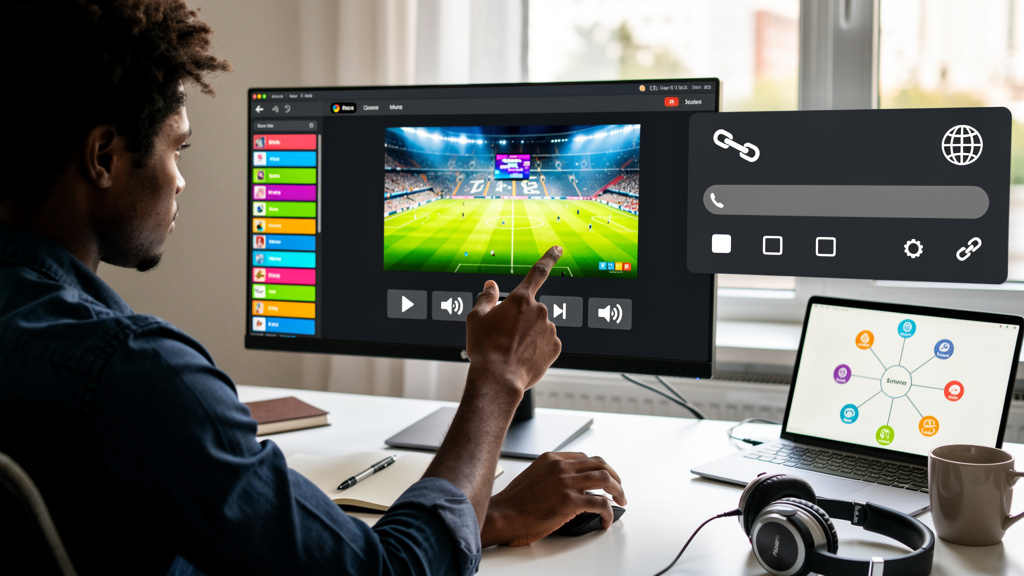
VLC is one of those tools that does a lot more than it advertises. If you point it at a public IPTV playlist (a plain text file listing live TV stream URLs that VLC plays back as if they were local channels), it turns into a no-frills live TV viewer with thousands of channels, no subscription, no extra app, no ads stitched in front of the content. The catch is that VLC does not supply the channels itself. You bring a legal playlist or a stream URL, and VLC does the rest.
The setup is genuinely simple. Open VLC, hit Media then Open Network Stream, paste a playlist URL, and click Play. That is the whole loop. The details that catch people are usually around playlist choice and the few playback quirks that show up when a stream refuses to load.
What IPTV actually is, in one paragraph
IPTV stands for Internet Protocol Television, which is the long way of saying live TV delivered as streaming video over the internet instead of through a cable line, a satellite dish, or an antenna. Each channel is just a streaming URL. A playlist file bundles many of those URLs together with channel names and logos, and a player like VLC reads the playlist and turns it into a browsable channel list.
The format most playlists use is M3U or M3U8 (a plain-text playlist format that lists media URLs, one per line, with optional metadata like channel name and logo). Both formats are open standards, which is why every IPTV player supports them. M3U8 is the more modern variant and handles live streaming better.
A common confusion worth clearing up: VLC is a player, not a service. It does not have its own channel list. It does not curate anything. You supply the playlist, and it plays what is in the playlist. If the streams behind the playlist are dead or geo-blocked, VLC cannot fix that. It is honest software in that way. It does what you tell it to do.
The broader picture is that public broadcasters have been putting their streams on the open web for years, partly as a public service and partly because international audiences are a soft-power goal. The streams exist. They are just spread across thousands of URLs instead of one neat bundle. Public playlists aggregate those URLs into something a normal player can browse.
The setup that works in five clicks
For most people, the practical entry point is a single public playlist. The iptv-org project maintains a free, community-curated index of public M3U streams at iptv-org.github.io, organized by country and category. It is not a single playlist to subscribe to. It is a directory of thousands of streams that broadcasters and public sources have made available for free.
The setup, end to end:
- Open VLC Media Player. The version does not matter much; anything from the last few years will work.
- Click Media in the menu bar, then Open Network Stream. The keyboard shortcut is Ctrl+N on Windows and Linux, Cmd+N on macOS.
- Paste a playlist URL. A good starter URL is the iptv-org index at
https://iptv-org.github.io/iptv/index.m3u, which lists every public stream they have catalogued. For a faster first load, pick a single country or category playlist from the iptv-org site instead of the global index. - Click Play. VLC will read through the playlist, parse out the channel entries, and start streaming the first one.
- Press Ctrl+L to open the playlist sidebar. (On macOS, the menu shortcut may show as Cmd+L depending on VLC version.) You will see a long list of channel names with logos where available. Click any channel to switch to it.
The first load of the global index takes a few seconds while VLC reads through tens of thousands of entries. That pause is normal. Switching to a single-country playlist cuts the load to a second or two and is what most people settle on after the first try.
What plays well and what does not
Public broadcaster streams tend to be the most reliable entries. Most countries have a state-funded public broadcaster that streams its channels for free on the open web. Germany has ARD and ZDF, France has France Télévisions, the UK has the BBC, Japan has NHK, and so on. These streams are stable, legal, and free.
Third-party playlist curators vary wildly in quality. A lot of community-maintained playlists pull in streams that were not meant to be redistributed, or they bundle free channels with pirated ones in the same file. The free channels are fine to watch. The bundled pirated streams are not, and the playlist’s quality depends on who put it together.
Paid IPTV services advertising themselves as “free” are usually not free. If a service requires an account, a payment, or a referral code to access its playlist, it is not free, and using it may have legal consequences depending on what the streams actually carry.
Trade-offs
There are real limits to this approach, and knowing them in advance saves frustration.
- Public IPTV playlist quality depends entirely on the streams behind the URLs. Dead streams are common. A channel that worked last month may stop working this month because the broadcaster changed its CDN (a content delivery network, meaning the infrastructure that distributes the video files to viewers worldwide). VLC will show the error and move on, but you will see a lot of failures in a global playlist.
- Geo-blocking hits hard. Many public broadcaster streams are restricted to viewers inside their own country. A French public channel will refuse to play from an IP address outside France. A VPN (a virtual private network that routes your traffic through a server in another country, which makes it look like you are browsing from that country) can sometimes work around this for legitimately free content, but it does not help if the stream is region-locked for licensing reasons.
- VLC is not a TV app. It does not have a program guide, recording, pause-and-resume across devices, or any of the niceties of a real TV experience. You are using a media player that happens to be good at network streams, not a TV replacement.
- The first-play delay on a global index is annoying. Loading the entire iptv-org index takes real time. A regional or category playlist is faster.
- Hardware decoding sometimes breaks. If you see a black screen with sound, the codec (the software that compresses and decompresses the video stream) is failing to decode in software. Open Tools then Preferences, then Input and Codecs, and switch hardware-accelerated decoding to Automatic. Restart VLC and the same stream usually plays.
When you should use a dedicated app instead
VLC is the right tool when you want to spot-check a stream, watch one channel occasionally, or sanity-check a playlist before subscribing to a paid service. It is the wrong tool when you want a full TV experience with a guide, recordings, and cross-device sync.
For a real TV setup, dedicated apps like TiviMate, IPTV Smarters, or Kodi (with the PVR IPTV Simple Client add-on) handle the program guide, recording, and channel logos better than VLC ever will. They are more work to set up and they cost money or come with a learning curve.
If all you want is one channel on your laptop while you work, VLC with a public playlist is the fastest path from nothing to picture. That is the use case the tool fits, and it does that use case well.