
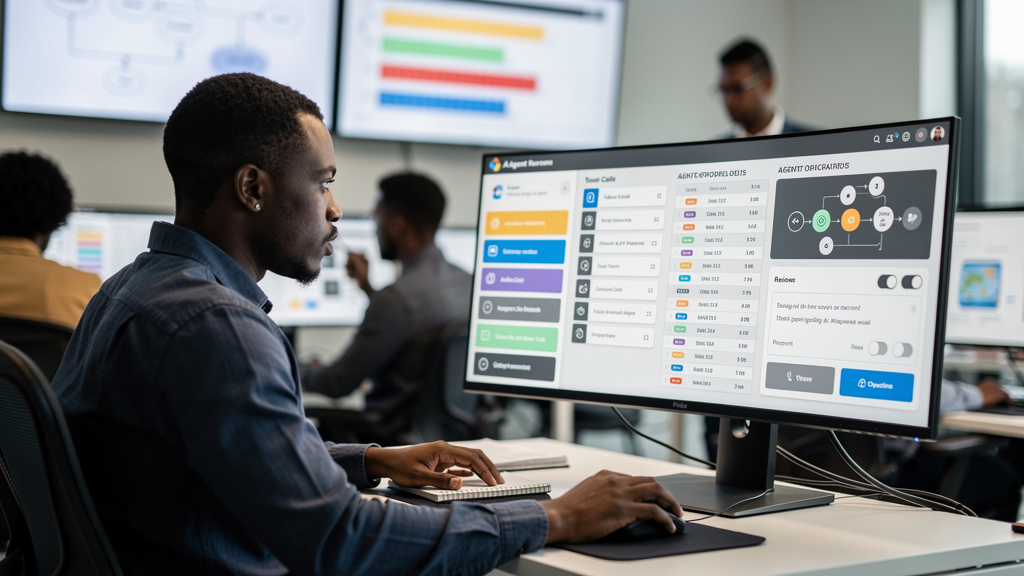
If you run a Linux desktop for actual work, you have probably hit the wall where a task you do every day is too small to script but too annoying to keep doing by hand. Filling out a form. Renaming a stack of downloaded files. Clicking through the same six dialogs every Monday morning. On macOS the answer is usually Shortcuts. On Windows it is Power Automate. On Linux the answer is a loose collection of smaller tools, none of which do everything, all of which do their one thing well if you know they exist.
I have spent the last year collecting visual automation tools (programs that let you drive the desktop through a graphical interface instead of writing code) on Linux. The list below is the seven I actually use or have recommended to friends who were about to start writing Bash for something that does not need Bash. None of them are new. Most of them predate the recent wave of “AI agents that click on your screen,” and that is part of why they still work. They were designed for the job before anyone decided the job needed a large language model.
Why the visual layer matters
Linux has a strong command-line tradition, and that tradition is part of the appeal. But there is a real category of work that is awkward to script because it crosses programs. You have a PDF, a browser tab, a file manager, and a chat client, and the task is to drag a number from one to the other, save the result, and notify a coworker. Scripts that reach across X11 or Wayland (the two display protocols that Linux desktops use to draw windows) work, but they break the moment a tooltip, animation, or compositor change happens. Visual tools sidestep that by either recording what the screen actually did, or by sending input through the same low-level channel the kernel already uses for keyboards and mice.
The tradeoff is portability. A script that uses xdotool (the X11 input simulator that ships with most distros) does not work on a Wayland session. A script that uses wtype (the Wayland equivalent) does not work on X11. There is no clean answer here yet. Pick the tool that matches the session you actually run.
The seven tools worth knowing
I picked these because each one solves a problem the others do not, and because all of them are still maintained. Six of the seven are in active distro repositories or on active GitHub releases. One of them is older and a little dusty, and I will say so.
- xdotool. The X11 keyboard and mouse simulator. You can drive any X11 window, type text into focused fields, click at coordinates, and chain actions in a shell script. The de facto standard, present in every distro repo I have tried. Works on X11 only. On Wayland it does nothing.
- wtype. The Wayland counterpart to xdotool. Takes the same kind of input commands but speaks the wlroots keyboard protocol instead of X11. Works on wlroots-based compositors (Sway, Hyprland, River, Wayfire) and on KDE Plasma 6. Does not work on GNOME’s Mutter because GNOME has its own input stack.
- Actiona. The scripted-workflow builder. You chain GUI blocks together: click here, wait for this image to appear, type this text, run this command, branch on this condition. The interface is dated and the documentation is sparse. Runs on Linux and Windows.
- AutoKey. A text-expansion and hotkey engine. You bind abbreviations to expanded text, hotkeys to scripts in Python or any scripting language, and phrase triggers to whatever you want. Best tool on this list for filling out repetitive forms without a screen click in sight.
- Repeat (formerly SikuliX’s Linux cousin). Records your mouse and keyboard and replays it. There is no scripting involved. You hit record, do the thing, hit stop, and the resulting file is the automation. Simple. Fragile across resolution changes. Useless if the program you are driving has a different layout tomorrow.
- OculiX. The newest tool on the list, and the one built for screen recognition. Instead of “click at x=400, y=300” you say “click on the button that says Submit.” Uses template matching against the screen image. Tolerates UI changes that would break coordinate-based automation. Still single-author, single-repo, so treat it as a young project.
- BiggerTask. Records mouse and keyboard, like Repeat, but with a more modern Linux-friendly UI. Smaller community. Useful if Repeat does not compile on your distro.
When the visual layer is the wrong tool
Before you reach for any of these, it is worth asking whether you actually need visual automation at all. If the task is internal to one program and that program has a real API or scripting interface, you are better off using it. Visual automation is for the gap between programs, the work that does not have an API, and the cases where you have to drive a third-party tool that ships without any automation hooks.
Three cases where I have stopped reaching for the visual layer and gone back to scripting:
- Repetitive data entry into a single structured form. A
csvkitorxsvpipeline plusxdotool typeis faster than clicking through the same ten fields, and the script does not break when the form layout changes by two pixels. - Server work without a graphical session. On a headless box, none of these tools help you. SSH in, write the Bash, move on.
- Anything where the cost of getting it wrong is high. Visual automation is brittle. If the script does the wrong click, it does the wrong click at scale. For things like production data migrations or anything touching credentials, the script needs to be auditable, and visual scripts are hard to audit.
How I actually use them
The visual tools above are not interchangeable. Here is what I reach for, in order of frequency:
- AutoKey for any text-expansion work. Email signatures, address blocks, the four SQL queries I run daily. Bound to hotkeys so they fire without touching the mouse.
- xdotool in shell scripts that need to drive a single X11 application. I keep a small library of one-liners that handle the awkward cases the API does not cover.
- Actiona when the workflow spans more than one program and I want the script to be readable by another human six months from now.
- wtype on my Sway laptop for the same role xdotool plays on my X11 workstation.
- OculiX when I have to drive a program whose layout I cannot predict, which is rare. It is the right tool when nothing else will do.
I have not opened Repeat or BiggerTask in months. They are fine tools, but the recording-and-playback model does not survive a Linux desktop’s habit of changing compositor or window decoration themes every six months.
Trade-offs
The visual layer is not free in time. Recording and tuning a workflow takes longer than writing the equivalent Bash the first time. The savings only show up after you have run the same automation fifty or a hundred times. Treat any visual tool as a long-term investment, not a one-shot fix.
Compositor lock-in is real. The X11 tools do not work on Wayland, and the Wayland tools do not work on X11. If you switch sessions frequently, you end up maintaining two automations. The pragmatic answer is to standardize on one compositor and live with the cost of the swap if you ever move. Editor’s note: there is no clean cross-compositor answer at the time of writing; the closest thing is to run the X11 tools under XWayland, which works for most cases but adds another layer of indirection.
Screen recognition tools (OculiX, in particular) are sensitive to theme changes, font changes, and icon-set swaps. A dark theme update can move the “Submit” button by ten pixels and break every template. If your desktop is heavily themed and you like changing themes, screen recognition will frustrate you. Stick to coordinate-based tools, and accept the brittleness that comes with them.
The community around each tool is small. None of these have the user base of, say, VS Code or Firefox. When you hit a bug, you are reading source and posting issues, not searching for a Stack Overflow answer with 200 upvotes. If that is a deal-breaker, you probably want a tool from a larger vendor, with the licensing cost that comes with it.
What I would tell past me
If I could send a message back to the version of me who first tried to automate a Linux desktop, three things would be on the list.
- Pick the smallest tool that solves the actual problem. If you only need text expansion, AutoKey alone covers ninety percent of what you wanted. Adding xdotool, Actiona, and a screen recorder to the same workflow is a maintenance burden, not a feature.
- Standardize on one display protocol before you write the first script. Switching between the two later means rewriting everything. The cost is hidden until you actually move, and then it is enormous.
- Treat visual scripts as throwaway by default. The most useful automations are the ones that live for a few weeks, get the job done, and then get replaced by the right API call when you finally have time to write it. The few that survive for years are worth the maintenance. The dozens that do not are still worth writing.
The bottom line is that Linux has a real visual automation layer, it is just spread across seven small projects instead of one flagship product. If you learn two or three of these well, you can automate most of the desktop tasks that do not deserve a script.