
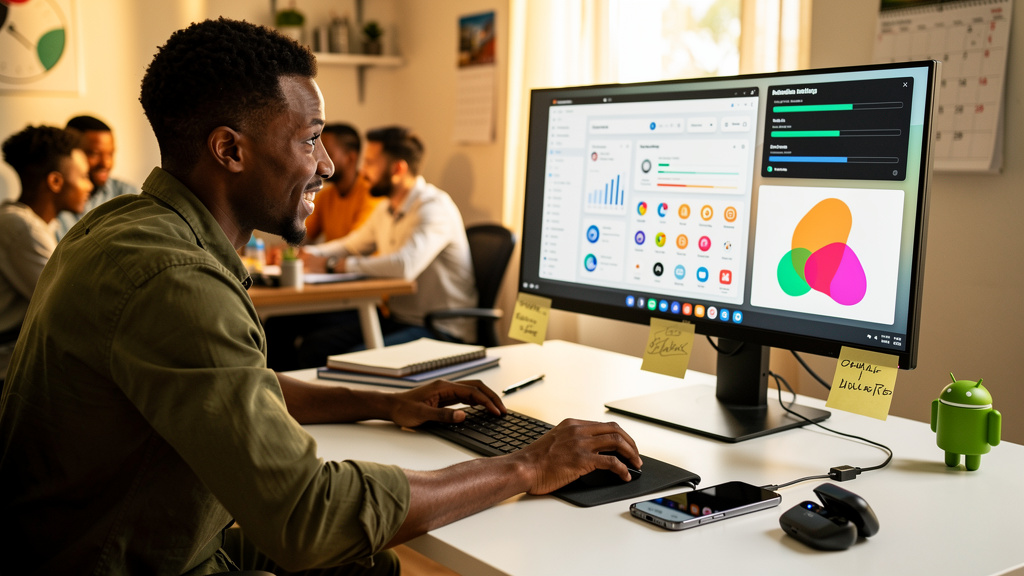
I have been running Samsung DeX (Samsung’s desktop mode that runs on a phone when you plug it into a display) for about six years on three different Galaxy phones. The first time I tried it, in 2019, the experience was close to a laptop replacement and a long way from one. The windows remembered nothing, the launcher treated every reboot as a fresh start, and screen recording was not supported at all. I kept using it for travel and gave up using it for real work. After One UI 8.5 (Samsung’s latest Android skin, released in early June 2026) shipped to my phone, I plugged my Galaxy into my home monitor and gave it a second look. The second look is the point of this article. The new DeX is not a step up. It is a different product.
What changed is not the demo video. The demo video of DeX has looked good for years. What changed is the four small things that have been missing since the feature launched: virtual desktops, persistent window memory, widgets on the DeX home screen, and screen recording. None of these are headline features. All four together are the difference between “I plugged my phone into a screen” and “I am using a desktop.”
Old DeX was a fancy feature, not a workflow
Before the 8.5 update, DeX (a portmanteau of “Desktop eXperience,” Samsung’s name for the phone-as-desktop mode) had two problems that kept it from being a daily driver. The first was amnesia. Every time I launched DeX, the session forgot the previous one. The window positions were lost. The set of open apps was lost. The size of each window was lost. I had to rebuild the same setup, in the same place, on the same windows, on every connection. The second was the absence of widgets. DeX showed a launcher grid and a status bar, and that was the entire home screen. There was no way to glance at the weather, the calendar, or the next meeting without opening an app and putting it in front of the workspace.
I worked around the amnesia by keeping a sticky note on the monitor. “Open Slack here, open the editor here, open the terminal here.” The workaround was fine for a one-off but degraded fast. Every time Samsung updated the launcher layout, the sticky note was wrong. Every time a new app version remembered its own state, the workaround’s relative-position math got out of sync with the system.
I worked around the missing widgets by keeping my phone face-up on the desk. That worked for a single glance but not for a workflow. The phone would lock, the glance would not, and I would end up picking up the phone to read the weather, which meant the workflow was now spread across two devices, which was the workflow I was trying to avoid.
Both workarounds were symptoms of the same gap. DeX treated each session as a one-shot. The phone-as-laptop idea only works if the desktop remembers, the way a laptop does.
What One UI 8.5 actually adds
The 8.5 update adds four features and a handful of keyboard shortcuts, and the four features are the ones that turn DeX from “phone plugged into a screen” into a real desktop replacement. The first is virtual desktops. You can run four separate DeX environments at the same time, just like on Windows or macOS. I keep one for work apps (Slack, browser, the code editor, the terminal), one for the chat apps I want to see but not respond to, and one for the long-running browser tabs I do not want cluttering the work view. To switch between them, I swipe three fingers across the phone’s display, or click the desktop indicator on the bottom bar.
The four additions that make the new DeX a real desktop rather than a feature are small individually and decisive together:
- Virtual desktops. Four independent DeX environments, switchable by three-finger swipe or the bottom-bar indicator. The same pattern as Windows 11 and macOS Spaces.
- Widgets on the DeX home screen. Right-click the desktop, pick Widgets, and every widget you have installed on the phone shows up. Weather and calendar are the two I added; the picker is the regular phone widget picker.
- Screen recording. The quick settings tile starts a 1080p 30-fps capture that saves to the phone’s storage. Previously the only option was a screenshot.
- Window memory. Sessions remember open apps, window positions, window sizes, and the active desktop. Plug in, and the desktop is where you left it.
Widgets on the DeX home screen are the second of the four additions. You can right-click anywhere on the DeX home screen and pick Widgets. The widget picker is the same one the regular phone launcher uses, so every widget you have installed on the phone is available in DeX. I added the weather widget and the calendar widget, which are the two things I pick up the phone for most often. The widgets persist across sessions, which means the workarounds I had been using (sticky note, phone on the desk) are now redundant. The home screen does the job the home screen is supposed to do.
Screen recording is the third addition. Previously, the only way to capture what was on the DeX screen was a screenshot. The 8.5 update adds a screen recorder that saves to the phone’s storage, and you can launch it from the quick settings tile. The capture is in 1080p at 30 frames per second on my S24, which is good enough for a bug report or a quick walkthrough. The recording starts and stops from the same tile, and the output file lands in the same folder the regular phone screen recorder uses.
Window memory is the fourth addition. I cannot tell you exactly which build added it because Samsung does not publish the changelog with that level of detail, but as of 8.5 my DeX sessions remember the open apps, the window positions, the window sizes, and the active desktop. I open the same five apps in the same windows on the same desktop every time I plug in, and I have not touched a sticky note in three weeks.
The keyboard shortcuts are a smaller set, but the one I use most is Command plus an arrow key, which snaps a window to the left or right half of the display. The shortcut works the same way it does on macOS, and on Windows 11 with the PowerToys snap add-on. PC users will recognize it as the most-used window-management shortcut on a desktop, and it was missing from DeX for years.
The setup I am running now
My current setup is a Galaxy S24, a 27-inch 1440p monitor, a USB-C hub (a small dock that splits one USB-C port into HDMI, USB, Ethernet, and power), a Bluetooth keyboard, and a Bluetooth mouse. The hub connects the monitor over HDMI, the keyboard and mouse over Bluetooth, and the phone over USB-C. The hub also charges the phone while it is plugged in, which is the only way to use DeX for a long session.
The session opens with the phone locked. I plug the USB-C cable in, the phone unlocks, the monitor wakes up, and the DeX home screen appears within a few seconds. From there, I swipe to the work desktop, the five apps load, and I am at my desk. Total time from “phone in my pocket” to “ready to work” is about ten seconds. The most surprising part of the experience is that the ten seconds feels faster than the equivalent laptop boot, because the apps are already in memory on the phone and do not have to launch cold.
The session closes by unplugging the USB-C cable. The phone locks, the monitor turns off (via HDMI-CEC, the protocol that lets the display follow the phone’s power state), and the DeX windows save their state. The next time I plug in, the same windows are in the same place.
Trade-offs
DeX is not a laptop replacement for everyone. The session is bound to the phone, which means a phone call pauses the desktop. A game running on the phone’s screen will slow the DeX windows. A phone reboot is a desktop reboot. If you spend your day on video calls, the call routing is messier than a Mac or a Windows laptop, because Samsung’s phone app does not share state with the DeX windows the way the desktop equivalents do. For a developer, a writer, a researcher, or anyone whose work is mostly text and a browser, the new DeX is a credible laptop replacement. For anyone whose work is mostly video, it is not.
In my case, the trade-off was worth it because the heaviest part of my day is the editor and the terminal, and both of those are better on a real desktop with a real keyboard and a real monitor. The phone-as-laptop has been a useful additional option, not a primary one. I am writing this article on DeX, but I would not be doing my taxes on it.
The migration took about a week. The first three days were a mix of “I do not need this app on the desktop” and “I forgot this setting lived in the phone, not the laptop.” The fourth day, the windows stopped rearranging themselves. The fifth day, I stopped reaching for the laptop for short tasks. The week ended with the laptop on the shelf and the phone on the dock. I am not sure the laptop will come back.
If you write or code for a living, the new DeX is worth a week of your time. If you work in video, audio, or design, the trade-offs are real and the answer is probably a laptop. If you do not have a USB-C hub, a Bluetooth keyboard, and a Bluetooth mouse already, the cost of getting started is about the same as a budget laptop, and the laptop will probably serve you better for the first year.
Bottom line
The new DeX is the desktop mode Samsung should have shipped in 2019. The four additions (virtual desktops, widget support, screen recording, and persistent window memory) are small on their own and the difference between a feature and a product together. If you have a Galaxy and a USB-C hub, give it a real week. The sticky note is not needed anymore.