
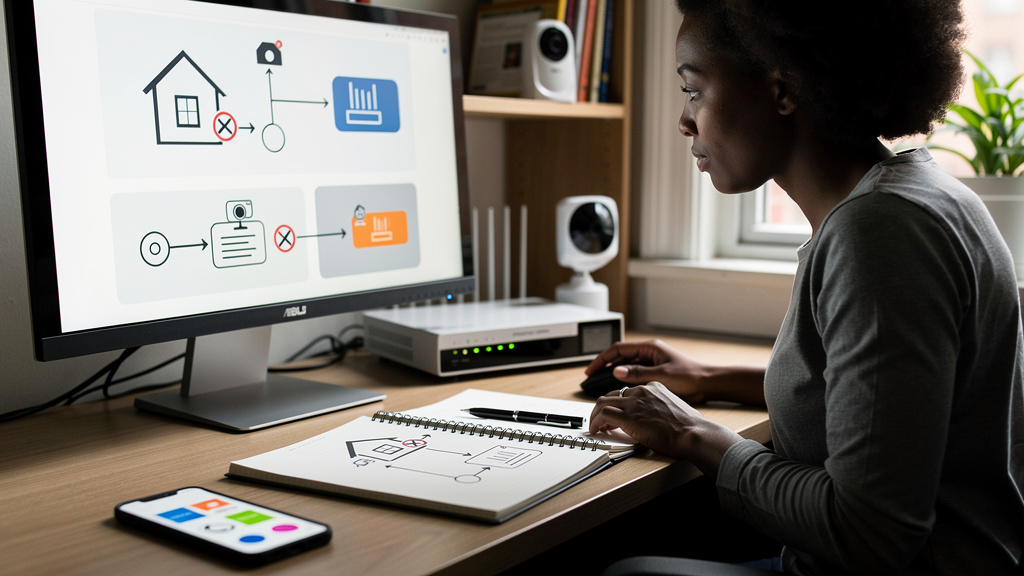
A friend asked me last month how to peek at his porch camera from the office, and before I could stop myself I was halfway through describing port forwarding. Then I caught myself, because the answer I was about to give is the wrong answer in 2026. The cleaner answer takes five minutes to set up and never opens a port to the public internet. Here is the order I now use when somebody asks me how to reach a device at home from somewhere else.
The reason I am writing this down is that the bad answer is still the most-searched answer. The router menus still make it the obvious path, and most guides still lead with it. That is a problem, because the alternative is genuinely safer and almost as easy. The only reason to forward a port in 2026 is if you have a specific need the alternatives cannot meet, and most home users do not.
What port forwarding actually does, in one sentence
Your router sits between your home network and the public internet and uses something called NAT (Network Address Translation, the mechanism that lets many devices share one public IP address by keeping track of which internal device asked for which connection) to drop every unsolicited request from the outside. When you forward a port, you tell the router to ignore that default for one specific port and to send the traffic straight to a specific device inside your network. That device is now reachable from anywhere on the internet, by anyone, on that port, forever.
That is a useful capability in narrow cases. It is also exactly what automated scanners spend every waking hour looking for. There are search engines, the most famous of which is Shodan, whose entire purpose is to catalog every device on the public internet that answers on any port. The moment you forward a port, your device is in that catalog within minutes. Login attempts against freshly exposed services typically start in under a minute, based on a controlled experiment Sophos ran a few years ago where they exposed a Remote Desktop server and watched the failed login attempts roll in.
Why one open port puts the whole network at risk
The instinct is to think of the exposed device in isolation. The camera is the camera. The NAS (Network Attached Storage, a dedicated file server on your home network) is the NAS. The reality is that once an attacker has a foothold on one device, your home network is the prize. From the camera, they probe the rest of your network. This is called lateral movement, and it is the reason a single weak device is a much bigger deal than the device itself.
This is also how home devices get drafted into botnets (networks of compromised devices that an attacker controls in bulk, usually without the owners knowing). The Mirai attacks in 2016 worked exactly this way, hijacking hundreds of thousands of insecure IoT (Internet of Things, the catch-all term for internet-connected consumer devices like cameras, thermostats, and smart bulbs) gadgets and using them to launch denial-of-service attacks against major internet services. Your compromised camera does not just put you at risk. It becomes a soldier in someone else’s army.
Ransomware crews run automated scanners specifically looking for exposed NAS devices. One open port and your most important files become a target. The advice to stop exposing your NAS to the internet is not paranoia. It is the conclusion the security community reached after watching this play out over and over for a decade.
The safer alternative that takes five minutes
The whole reason most people forward a port is to reach a device at home from somewhere else. The cleaner answer is a VPN (Virtual Private Network, an encrypted tunnel between your device and your home network that makes it look like you are at home even when you are not) or an overlay network. Instead of opening a door to a specific device, you create a private encrypted tunnel that only you can enter. Once you are inside, everything behaves as if you were at home.
Tailscale and WireGuard are the two tools I reach for. Tailscale, in particular, builds a private mesh between your devices using the WireGuard protocol underneath, and crucially, it does not require you to open any ports at all. You install an app, sign in, and your devices can talk to each other from anywhere in the world. The setup takes five minutes for most home users and zero router configuration. Once it is running, you can reach your camera, your NAS, your home automation, anything on your home network, exactly as if you were on the local Wi-Fi.
The cases where port forwarding is still the cleanest path are narrow. Self-hosting a public service that strangers need to reach, like a website or a game server, is one. Running a service that does not have a VPN-capable client is another. For the 90-percent case of “I want to see my stuff from somewhere else,” the VPN path is both safer and easier to maintain over time.
What to do if you have to forward a port
Sometimes the alternatives do not fit. If you have to forward a port, the order of operations is:
- Update the device firmware first. Out-of-firmware is the most common way exposed devices get compromised within hours of going online.
- Forward the smallest possible surface. One port, one device, no DMZ (a router mode that exposes a single device to the entire internet with no firewall filtering; almost never what you want) configuration. The router should know exactly one thing about that device.
- Put the device on a guest network or a VLAN (Virtual Local Area Network, a way to segment one physical network into multiple isolated sub-networks so devices cannot see each other) if your router supports it. Lateral movement requires the device to be able to talk to your other devices. A guest network cuts that off.
- Disable UPnP (Universal Plug and Play, a router feature that lets devices on your network automatically open ports on the router without your involvement). UPnP is a convenience feature that lets devices open ports on your behalf without your involvement. It is also a common way that a compromised device on your network quietly opens a hole you did not know about.
- Watch the logs. The router’s connection log will tell you, within hours, whether the exposed device is being scanned. If it is, take it offline and find a different path.
Trade-offs
The VPN path is not free. The setup takes longer the first time than forwarding a port does, and you have to install an app on every device you want to reach home from. Tailscale has a generous free tier for personal use but caps you at 100 devices, and self-hosted Headscale (the open-source implementation of the Tailscale control server) takes more setup than most home users will want to do. WireGuard directly is faster and more flexible but requires manual key management and is not for the faint of heart.
A reverse proxy is another option, especially if you want to expose a specific web service but still keep control. Tools like Caddy and Nginx Proxy Manager are good fits, but they are configuration projects, not five-minute installs.
If you are not technical and the device you want to reach is a phone app that already works over the cloud, you do not need any of this. Just use the cloud. The argument for not forwarding ports only applies to devices that genuinely need to be reached locally.
What I would tell past me
If I could send a message back to the version of me that was halfway through explaining port forwarding to my friend, I would say three things.
- The default answer is not port forwarding anymore. It has not been for years, and the cost of the old answer is measured in compromised devices, not minutes saved.
- Five minutes of Tailscale setup buys you the same reach without ever opening a port. If you only do one thing from this article, install Tailscale on your phone and on one home device, and confirm you can reach the home device from your phone on cellular.
- If you must forward a port, put the device on a guest network first. The single biggest mitigation for lateral movement is making sure the exposed device cannot see the rest of your network.