
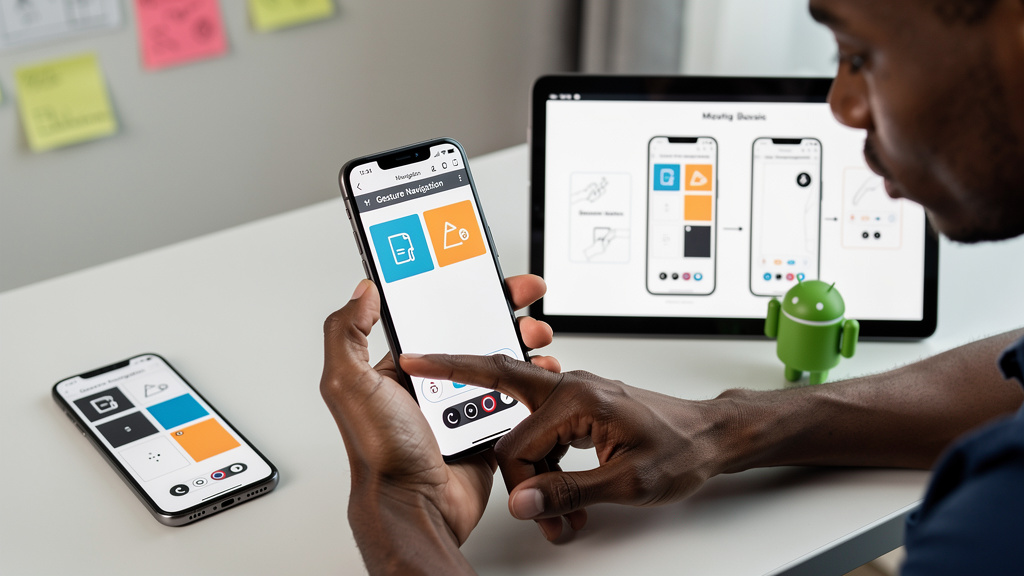
I left my phone on the modern swipe-and-pill (gesture navigation) for years because the floaty bar at the bottom looked clean and gave apps an extra sliver of screen. After seven days on the classic back/home/recent buttons, I switched the navigation method back just to test the contrast. Within an hour I missed three shortcuts I had no idea were gestures in the first place. None of them are tucked away in developer menus. They have been sitting in plain sight, but they only fire reliably when the bar at the bottom of the screen has physical targets under my thumb.
Flipping the navigation bar in about a minute
On a Pixel, look under Settings > System > Gestures > Navigation mode and choose the three-button option. On a Galaxy, the path is Settings > Display > Navigation bar, and you can pick between traditional buttons and Swipe gestures. Nothing else about the phone moves. Apps, home screen layout, and saved data all stay where they were. Switching back is a single trip to the same screen.
- Pixel path: Settings > System > Gestures > Navigation mode > 3-button
- Samsung path: Settings > Display > Navigation bar > Buttons
- Reversible: one Settings trip gets you back to gestures with no data loss
- No restart needed on either brand
The first impression is that the usable screen feels a touch smaller. The bar takes a strip of vertical space the pill does not. On a 6.1 inch device that strip is noticeable. On a 6.7 inch panel it barely registers. After two days the trade stopped feeling like a loss.
A desktop reflex living in the wrong place
The single biggest change was double-clicking the square Recents button. The action is the same as Alt Tab on Windows or Command Tab on Mac. It pops you straight back to the previous app you had open, using the same muscle memory I have been training on a desktop for two decades. Gesture navigation does the same thing, but it requires a faster side-swipe and a precise edge hit at the bottom of the display. The physical button just fires.
- Trigger: double-press the Recents key on the navigation bar
- Speed: one short motion, no edge swiping required
- Reliability: works when the screen is wet or your thumb is sweaty
- Limit: only flips between the two apps you have open most recently
- Pairs nicely with: split-screen multitasking on phones 6.5 inches and up
For the kind of work where I bounce between Messages and a browser tab to copy a link, the double-press feels closer to a keyboard shortcut than a phone gesture. It also solved a small but persistent bug I never bothered to name: my thumb would sometimes slip near the side of the display and trigger a wrong gesture. The key does not slip.
Holding Home calls up Circle to Search on a Pixel
On a Pixel running Android 14 or newer, holding the Home key down for roughly a second pulls up Circle to Search, the Google overlay (an interactive layer that pops up over whatever you are looking at) that lets you scribble, highlight, or circle anything visible and ask Google what it is. Under swipe navigation the same action used to require holding the bar at the bottom of the screen, which was finicky when the bar was the pill. Under a real key it activates every time, and the round trip feels closer to “screenshot and ask” without the extra step.
- Trigger: long-hold the Home key for roughly one second
- What it shows: a tool that reads text, identifies objects, and decodes QR codes on your screen
- Best for: identifying a product in a photo, translating a street sign, naming a plant
- Caveat: the captured region of your screen goes to Google servers for matching
On a Samsung phone, the same hold opens whichever assistant is set as the default. Both behave the same way: hold the key, the assistant activates, you talk or type. The action feels much more deliberate than saying the wake phrase out loud, which helps in meetings and quiet public spaces.
The same hold is the fastest path to your assistant
That long-hold opens Gemini or Google Assistant in one shot, which beats wake phrases and the awkward swipe-and-hold combo. For anyone who dictates short messages or sets kitchen timers by voice, the physical key turns the assistant from a feature you forget about into one you actually reach for. After a week, I had stopped saying the wake phrase almost entirely and the phone felt calmer to use.
- Trigger: long-hold Home, then speak or type
- Pixel option: swap the action for Gemini Live or fall back to the older Google Assistant
- Samsung option: Bixby still answers a long-hold if you have not changed the default
- Caveat: voice recognition still needs a network, so plan for it on planes
The friction here is the same as under gestures: voice recognition wants a network. If you are in flight mode or out of coverage, the long-hold opens a screen that says the assistant is offline and waits. That is the same behavior either way, so it is not a regression. It is a place where no navigation style helps.
Long-holding Recents drops you straight into App Info
This one is small but I use it every week. Holding the Recents key down opens the App Info screen (the system panel that lists an app’s notifications, permissions, storage, and battery use) for whichever app you have in the foreground. From there you can flip notification permissions, check what the app can access, or force-stop it (shut it down without uninstalling) without digging into the Settings tree.
- Trigger: long-hold Recents while an app is in front
- What it shows: notifications, permissions, storage, and a force-stop button
- Best for: shutting down a chatty or buggy app without rebooting
- Caveat: this is the same screen as Settings > Apps, so any edit is a real change
When an app drains battery or floods the notification shade, this saves a real number of taps. It also makes permission reviews a one-hand operation instead of a Settings tree crawl.
What the button bar costs and who should stay on gestures
I want to be honest about what the swap costs. The classic bar is not right for every hand. If your phone has a small screen, the row of keys eats into space you might want for reading and video. If you rely on inward edge swipes for one-handed use, the keys do not help with that. If you have years of muscle memory around the pill, the first few days will feel slow.
- Screen real estate: about 5 to 7 percent less vertical space, depending on the phone
- Edge swipes still work in apps that expect them, so you do not lose those
- Muscle memory from years of gestures takes a few days to fade
- Voice activation is back to needing the long-hold instead of a quiet wake phrase
I tried the gesture bar again for a day to confirm the trade was real. It was. The shortcuts the keys unlocked were faster for me, and the screen real estate I lost was not worth what I had regained. I am staying with the classic bar, with the honest caveat that the right answer depends on screen size and how much you rely on edge swipes. Both layouts work, and flipping between them is a single Settings trip.