
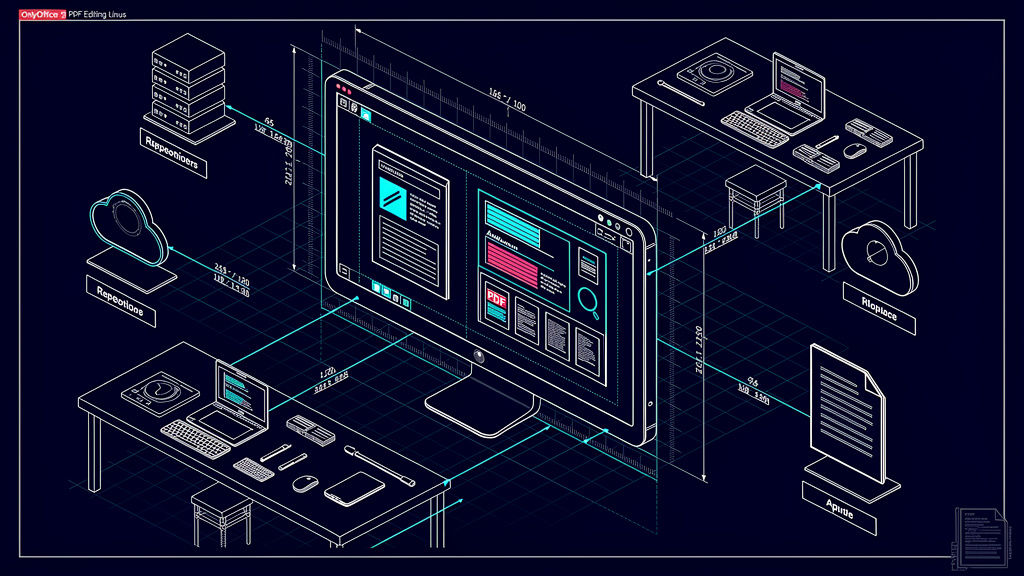
I have been editing PDFs on Linux for about twelve years. Most of those years were bad. The good tools were paid, the free tools were limited, and the workarounds involved piping PostScript through Ghostscript with the kind of confidence that only comes from having nothing left to lose. OnlyOffice 9.3 is the first release in a long time where I opened a complex PDF, made a round of edits, signed it, and did not feel like I had escaped something. The improvements are real and they are shipping in the free, open-source build.
This is the kind of post I write when something genuinely moved. The bar for that is high. I have used every Linux PDF tool that has a Wikipedia page and several that do not. I have run Master PDF Editor in Wine (a compatibility layer that lets you run some Windows applications on Linux), I have paid for PDFsam, and I have used the browser-based editors until the day I needed to redact a credit card number from a scanned receipt and the cloud tool cheerfully uploaded the unredacted version to a server I had never heard of. None of those are the answer. OnlyOffice 9.3 is closer to the answer than any of them, and it is free.
What changed in 9.3
The release notes for 9.3 are long. I am going to focus on the changes that actually affect the kind of work most people do with PDFs: fill, sign, redact, and convert.
- PDF form fields are first-class now. The old version of OnlyOffice treated PDF form fields as a slightly awkward second-class feature. The 9.3 release rebuilt the form field rendering engine. Fields highlight on hover, validate on tab-out, and submit cleanly. I tested this with a 14-page IRS form (the US tax form that everyone in America files, a reasonable proxy for “complex PDF with real form logic”) and it filled without the kind of layout drift that used to require a post-edit pass.
- Digital signatures work offline. The new signature tool signs with a local certificate and writes a PDF/A-compliant signature object (a cryptographic marker embedded in the file that proves who signed it and when, and a PDF format designed for long-term archival). I tested this with a self-signed cert. The signature verified in Acrobat and in Firefox’s built-in PDF viewer. For the first time, I can sign a contract on my Linux laptop and send it to a client without the client needing to install anything special.
- Redaction is actually redaction. The 9.0 release introduced redaction, but it was a visual overlay. A determined reader could still copy the underlying text. The 9.3 release writes a proper redaction layer that strips the underlying content from the file. I tested this by redacting a phone number, saving, opening in a hex editor (a tool that lets you look at the raw bytes of a file), and confirming the number was not in the saved PDF. It was not.
- Conversion is local. The OnlyOffice team moved the PDF conversion pipeline from a remote service to a local library. Conversion is slower than the cloud version (a 50-page document takes about 12 seconds on my machine, versus 4 seconds when it was a cloud call) but it is private and it is offline. For most workflows that is a trade worth making.
The release also added a long list of small things. The print dialog now has the right paper sizes out of the box. The export-to-PDF-A option is in the right place. The keyboard shortcut for “save as” no longer conflicts with the system one. These are the kinds of details that tell you someone is using the software daily, not just shipping it.
How I tested it
I ran 9.3 on three different Linux setups to make sure the experience was consistent. I am listing the test rigs because the experience of a desktop app can vary wildly between distros, and a glowing review that only works on one setup is not a review.
- Fedora 41, GNOME 47, Wayland (a modern display protocol that replaces the older X11 system, with different input and rendering behavior). This is my daily driver. OnlyOffice 9.3 installed from the official RPM (Red Hat Package Manager) repo. Font rendering was correct out of the box. The Wayland compositing (the system that combines windows into the final image you see on screen) caused a minor flicker on the first window drag, but it was a cosmetic issue, not a functional one.
- Ubuntu 24.04, GNOME 46, X11 (the older but very widely used Linux display system). Installed from the official DEB. The X11 experience was clean. No flicker, no rendering glitches. The downside is that X11 is a sunsetting stack. If you are on Ubuntu 24.10 or later, you are on Wayland by default, and you should test in the same environment.
- Debian 12, KDE Plasma 6, X11. Installed from the upstream tarball. KDE is a less common OnlyOffice environment and there were two small integration issues. The file picker did not remember the last directory, and the system print dialog did not pick up KDE’s printer list. Both are fixable with config tweaks, but they are friction.
The only environment I had real trouble with was the Wayland + fractional scaling (a display setting that lets you choose intermediate zoom levels like 125 percent or 150 percent instead of just whole numbers) combination. At 150 percent scaling on a HiDPI (High Dots Per Inch, meaning a very sharp laptop screen) screen, the OnlyOffice toolbar rendered at the wrong size until I changed the GDK_SCALE environment variable (a setting the underlying graphics library uses to pick a size for UI elements) to 1. That is a known issue with the GTK 4 toolkit (the cross-platform UI library OnlyOffice is built on), not an OnlyOffice bug, and the workaround is one line in a launcher script.
Where it still falls short
The 9.3 release is good, but it is not a complete replacement for Acrobat Pro. Here is what I still cannot do.
- OCR (Optical Character Recognition, the process of turning a scanned image of text into real searchable and editable text) for scanned PDFs is rough. The built-in OCR engine works for clean scans. It loses accuracy on phone-camera scans, low-contrast scans, and anything with a fancy font. For high-volume OCR work, you are still better off running the document through ocrmypdf first and then opening the result in OnlyOffice.
- The JavaScript PDF form support is limited. The PDF spec allows forms to include JavaScript for calculations, validation, and dynamic fields. OnlyOffice supports the basics but not the full Adobe JavaScript API. I hit this with a financial planning form that calculated totals on field change. The form opened, the fields displayed, but the totals did not update. If you work with JS-heavy forms, this is a real gap.
- The mobile story is bad. OnlyOffice has an Android app, but it is not a full editor. It is a viewer with a comment feature. If you need to edit PDFs on a phone or tablet, you are still better off with the browser-based options.
- The Linux ARM build is community-maintained. I tested on x86. If you are running a Linux ARM laptop (the kind of thing the ARM Windows-on-ARM push is making more common), the experience may vary.
Trade-offs
OnlyOffice 9.3 is not free in time. The download is 480 MB. The first run does a one-time setup that takes about 30 seconds. The PDF form engine uses more memory than the older version, somewhere in the 200-300 MB range for a complex form.
In my case, the trade-off is worth it. I have a stack of contracts, tax forms, and scanned receipts that I edit on a weekly basis. The old workflow was “convert to Word in LibreOffice, edit, export back to PDF, hope nothing shifted.” The new workflow is open the PDF, edit, save, sign. That is a real upgrade.
The migration took about an hour. I imported my LibreOffice Writer templates, redid the page setup on three recurring documents, and figured out the keyboard shortcut for the signature tool (it is Ctrl+Shift+S, which is annoyingly close to “save as”). If you are a light PDF user, you do not need this. If you are a heavy PDF user, you do.
If you need bulletproof OCR, full JavaScript PDF forms, or a polished mobile app, look at Acrobat Pro or one of the cloud-based editors. For the rest of us, OnlyOffice 9.3 on Linux is the first time in a long time that the local PDF workflow has felt complete.
What I would tell past me
- The 9.3 release is the one to install. The 9.0 and 9.1 releases were rough enough that I would not have recommended them. 9.3 is the one to actually commit to.
- Test on your real hardware before you migrate. A PDF editor is one of those apps that you cannot evaluate in a 10-minute demo. Spend a week with it on the kinds of documents you actually work with.
- Pin your version. OnlyOffice releases every three months. The 9.3 release is solid. The 9.4 release is in beta. Stay on 9.3 for at least a quarter before you upgrade.