
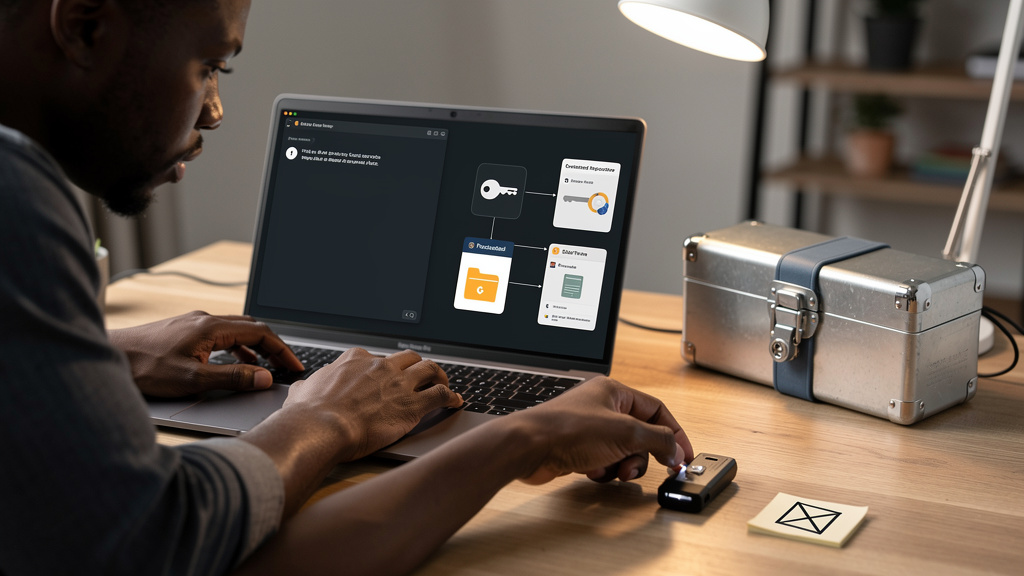
Every Windows 11 install I do ends with the same four downloads. They fill in pieces the operating system left blank, and they have been on my machines so long I forget they are not part of Windows. I stopped apologizing for them about a year ago and started treating them as the actual setup, with Windows as the foundation underneath.
A fresh install runs about a hundred and forty dollars for the Pro license. What arrives is a credential vault from the era when browsers did not autofill, a recycle-bin button pretending to be a disk analyzer, and a clipboard that forgets its one item the second you copy something else. None of those gaps are catastrophic on their own. Stacked together, they add up to a desktop that quietly punishes anyone who notices them.
Why I reach for a separate password manager
The password situation on a stock Windows 11 machine is built around Edge and Microsoft account sync. It works, the way a notepad works. It holds text. It does not generate strong passwords, alert you about breached credentials, or autofill reliably in anything other than Edge. The first time you try to log into a site in Firefox or Chrome using the built-in manager, you discover what was missing.
Two free tools solve the problem in different shapes. KeePassXC keeps an encrypted vault as a single file on your own disk. The file format is open, the code is auditable, and browser extensions exist for every major browser. There is no account, no subscription, and no telemetry. The cost is that getting the vault onto your phone takes a setup step. Drop the encrypted file into Dropbox, Syncthing, or a USB drive you manually sync. People who already use a cloud file service probably have the workflow.
Bitwarden is the alternative for anyone who would rather not think about file syncing. The free tier covers unlimited passwords on unlimited devices, including phones. The encrypted vault lives on Bitwarden’s servers, which is a real consideration if you care where your credentials physically sit. For most people who just want passwords everywhere, it is the easier sell.
- Open format, local file. KeePassXC stores the encrypted database as a single file you own and can back up however you like
- Free cloud sync. Bitwarden’s free plan syncs across phones and laptops without a paid upgrade
- Browser extensions in every major store. Both projects ship extensions for Chrome, Firefox, Edge, and Brave, and the same extensions typically work in any Chromium-based browser
- Breach monitoring without extra plugins. Both tools check your saved passwords against known breach corpora
Where the disk space went
Storage Sense and the legacy Disk Cleanup handle two cases well. They clear temp files and empty the recycle bin. They cannot answer the question that actually matters when the C drive is red: which folder ate the room. The built-in disk usage tool lists top-level directories, which on most machines just shows AppData as a single opaque blob and asks you to figure out the rest by hand.
WizTree reads the NTFS Master File Table, which is the metadata index Windows maintains for every file on a formatted NTFS drive. That turns a multi-terabyte scan into a seconds-long operation instead of a crawl. The result is a treemap that makes the worst offender obvious visually and a sortable list that lets you filter by file type. Running it on a drive that has been filling up for a year is genuinely eye-opening. The culprits are almost never what you guessed.
- Full NTFS scans in seconds. Reading the Master File Table skips the per-file crawl
- Treemap plus a filterable list. Visual scan to find the biggest folder, then drill into specific file types
- Free for personal use. No nag screens, no telemetry on the install I tested
- CSV export if you want the data. Useful for tracking storage growth over time
Smaller gaps worth one download each
The clipboard in Windows 11 has a history feature, but it is off by default and hidden three menus deep. A free clipboard manager like CopyQ remembers everything you have copied, makes it searchable, and persists across reboots. The use case I underestimated was searching the clipboard for a snippet I copied hours ago and never saved anywhere.
File format conversion is the second quiet gap. HEIC photos from iPhones do not open natively in the default Photos app on Windows. WebP images are hit-or-miss across older Office versions. A handful of free image viewers handle both formats locally without uploading a single byte of your photos to a remote service. The privacy story matters more than the convenience one if you handle client work, which is why the local-only choices are worth knowing about.
- Clipboard history that persists. A dedicated clipboard manager keeps a searchable archive of everything you copy, across reboots
- Local format conversion. Free image viewers open HEIC, WebP, and dozens of other formats without contacting a server
- No subscription anywhere on this list. All five tools are free at the personal-use tier, with optional donations to the maintainers
Why the gaps are still there
The pattern is not subtle. Microsoft chases enterprise contracts, AI features that make the keynote, and the annual release cycle that justifies another upgrade. A storage analyzer does not move the stock price. A better built-in password manager does not generate headlines. The boring utilities regular humans need every week get deprioritized while Copilot gets another button in the taskbar.
For the rest of us, the third-party scene has had fifteen years to step in. The tools above are mature, actively maintained, and have communities large enough that any bug gets reported and fixed inside a week. Installing them is not a workaround anymore. It is the actual setup.
What the install looks like in practice
Bitwarden and KeePassXC both ship as standard Windows installers. The first launch walks you through creating a master password, and the rest is the same as any password manager you have used before. The browser extension installs from the Chrome Web Store or Firefox Add-ons in a single click. For most people, the entire process is under ten minutes, including the master password.
WizTree is a portable executable, which means there is no installer to chase. You download the zip, extract it anywhere, and run the binary. The first scan pops up a UAC prompt (a Windows security dialog asking you to confirm an action that requires administrator rights) because reading the Master File Table needs elevated permissions. After that, every subsequent launch is a double-click. Clipboard managers and free image viewers all install through their own small installers and behave the same way any other desktop app does.
The single setup tip I wish I had known earlier is to write your master password down on paper and store it somewhere safe. A password manager without the master password is a locked safe you cannot open. The paper is not a backup plan. It is the recovery plan for the day you forget the one password that opens every other password.
Trade-offs
None of these tools are perfect. KeePassXC has no built-in sync, so getting the vault onto your phone means wiring up Dropbox, Syncthing, or a manual USB workflow. Bitwarden puts your encrypted vault on remote servers, which is fine until you decide it is not fine. WizTree reads the NTFS Master File Table, which is fast and only works fully on NTFS drives. Removable and network drives appear with less detail.
The fastest install is Bitwarden plus WizTree, about ten minutes total. The most private setup is KeePassXC plus WizTree plus a Syncthing install on your phone, which takes longer but keeps every credential on hardware you own. Either choice retires Credential Manager and Storage Sense the day you install them.
If your C drive has been complaining for months, run the WizTree scan tonight. If your passwords still live in Chrome’s built-in manager, move the top twenty into Bitwarden or KeePassXC this weekend. Both fixes pay back the install time on day one. The other gaps on the list, clipboard history, file format conversion, desktop widgets, all have strong free options waiting when you get to them.