
Your iPhone has two battery problems, and most advice mixes them together. One problem is getting through today without hunting for a charger. The other is keeping the battery useful after hundreds of charge cycles. Turning down the screen helps with the first problem. Avoiding long stretches at full charge and high temperature helps with the second.
That distinction changes how I approach battery settings. I do not want a phone stripped of every useful feature just to gain twelve minutes. I want a few settings that reduce obvious waste, a charging routine that does not cook the battery, and a clear signal for when replacement makes more sense than another round of tweaks.
Start with the battery health screen
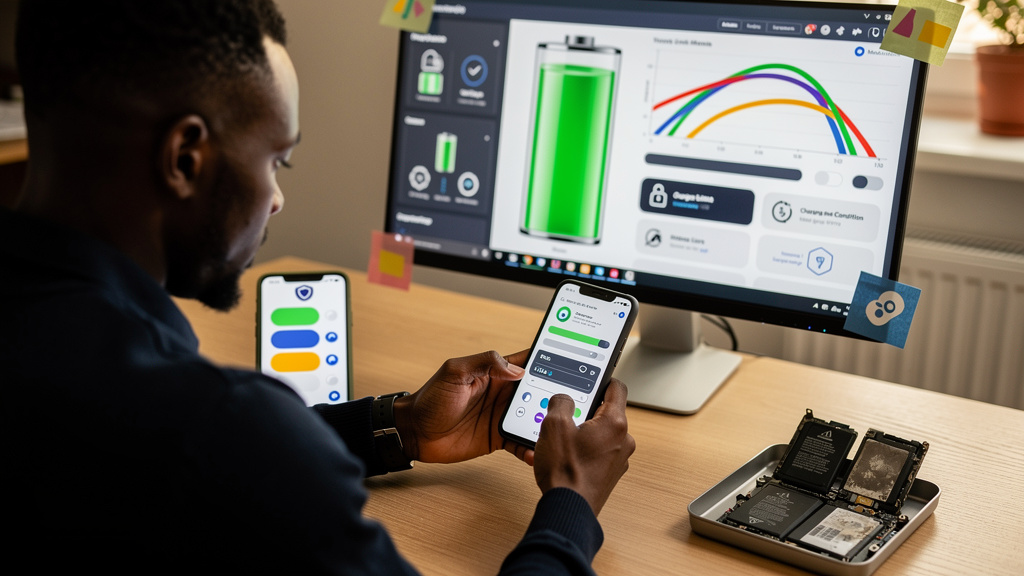
Open Settings > Battery > Battery Health & Charging. Apple changes labels between models and iOS releases, but this screen usually shows maximum capacity, peak performance capability, and charging controls.
Maximum capacity is an estimate of how much charge the battery can hold compared with when it was new. It is not a daily score. A reading of 90 percent does not mean the phone will stop at 90 percent on the status bar. It means a full charge now stores roughly 90 percent of the energy the battery held when new.
Before changing anything, check four things:
- Maximum capacity, so you have a baseline instead of a vague feeling
- Any service or performance warning, which settings cannot repair
- Optimized Battery Charging or the available charge-limit control
- The Battery screen’s app list, especially unusual background activity
Take a screenshot and check again in a month. Battery estimates move in steps because iOS recalibrates them. Watching the number every morning creates anxiety without producing useful evidence.
A battery is a consumable part. Chemical aging is normal. The practical goal is not to preserve 100 percent forever. It is to slow avoidable wear while still using the phone as a phone.
Use charging controls before inventing a ritual
Optimized Battery Charging learns when you usually unplug and delays the final portion of charging. The phone may pause around 80 percent, then finish shortly before it expects you to leave. This reduces the time the battery spends both warm and fully charged, a combination that accelerates aging.
Some newer models also offer a charge limit. If 80 percent comfortably covers your normal day, a limit is the simplest long-term setting. If you regularly return home below 15 percent, a strict limit may be more annoying than useful. Pick a limit that leaves a real margin, not one that turns every afternoon into battery management.
My charging rules are deliberately boring:
- Leave optimized charging enabled unless it repeatedly misses an unusual schedule
- Use a charge limit when the reduced range still covers an ordinary day
- Charge to 100 percent before travel, field work, or another long day away from power
- Avoid charging under a pillow, in direct sun, or inside a hot parked car
- Remove a thick case if the phone becomes noticeably hot while fast charging
You do not need to drain the battery to zero. Modern lithium-ion batteries have no useful memory-training ritual. Frequent partial charging is fine. The habit worth avoiding is heat, not a specific percentage with magical properties.
Wireless charging is convenient, but inefficient charging can produce more heat than a cable. That does not make every wireless charger harmful. It means alignment and temperature matter. If the phone gets hot every night on a cheap pad, use a cable or a better-aligned charger rather than arguing with physics.
Fix today’s drain with evidence
For short runtime, open Settings > Battery and inspect activity by app. Compare battery percentage with screen time and background activity. A navigation app using substantial power during a two-hour drive is expected. A shopping app running for hours in the background is not.
Work through the largest unexplained consumers first:
- Set Background App Refresh to off for apps that do not need silent updates
- Change location access from Always to While Using for apps without a continuous need
- Disable notifications that repeatedly wake the display for low-value alerts
- Check for weak cellular coverage, which makes the modem work harder
- Update or remove an app whose background use remains abnormal after a restart
The display is often the biggest legitimate consumer. Auto-Brightness is a good default because it lowers brightness in dim rooms without making outdoor use miserable. An always-on display also has a cost. If your phone struggles to last a day, disabling always-on is a cleaner trade than manually dragging brightness to the floor every hour.
Low Power Mode is useful, but I treat it as a tool rather than a permanent identity. It reduces background work, fetch frequency, visual effects, and some performance. Turn it on when the remaining charge needs to last. If you need it from breakfast every day, investigate the app list and battery health rather than hiding the symptom.
Signal quality deserves more attention. In a basement, rural area, or concrete building, the cellular radio may repeatedly search for service. Wi-Fi calling and a trusted Wi-Fi network can reduce that load. Airplane Mode can help in a dead zone when you do not need incoming calls, but it is not a reasonable all-day default.
Heat beats every clever setting
Battery advice tends to obsess over whether 79 or 81 percent is better. Temperature is the larger operational issue. A phone doing navigation, wireless projection, and fast charging on a sunny dashboard is handling sustained processing, radio use, display load, and charging at once.
Reduce stacked heat sources:
- Move the phone out of direct sunlight during navigation
- Prefer a vent mount only when it does not blast hot air in winter
- Stop a demanding game before fast charging if the device is already hot
- Let the phone cool before charging after outdoor use
- Do not leave it charging in a parked vehicle
Cold can reduce runtime temporarily, but severe heat can cause permanent capacity loss. If iOS pauses charging because of temperature, that is a safety response. Let the phone cool naturally. Do not put it in a freezer, where condensation creates a different problem.
Trade-offs
Battery preservation has a usability cost when taken too far. An 80 percent limit is sensible for a desk worker surrounded by chargers. It is a poor fit for someone who spends ten hours driving between sites.
Disabling background activity can delay mail, photo uploads, message backups, or task synchronization. Make the change app by app. Blanket restrictions are easy to apply and hard to diagnose later.
Lower brightness saves power, but an unreadable screen encourages constant manual adjustment. Auto-Brightness usually provides a better balance than a permanently dim display.
Fast charging creates more heat under some conditions, yet it is valuable when fifteen minutes near an outlet is all you have. Use it when speed matters. A slower charger at the bedside is often enough overnight.
Finally, no setting reverses chemical aging. Once capacity and performance have declined enough, a battery replacement restores more useful life than weeks of micromanagement.
Know when to replace instead of optimize
Consider service when iOS shows a battery warning, unexpected shutdowns continue, performance management appears, or the phone no longer covers your normal day despite reasonable settings. Maximum capacity near 80 percent is a common service benchmark, but lived behavior matters too.
A replacement can be an excellent value if the screen, cameras, storage, and software support still meet your needs. It also reduces electronic waste compared with replacing an otherwise capable phone.
My default setup is simple: optimized charging on, a comfortable charge limit when available, Auto-Brightness on, background and location permissions trimmed, and Low Power Mode reserved for days when I need it. Then I stop watching the percentage and use the device. Battery care should make the phone less demanding, not turn charging into another job.