
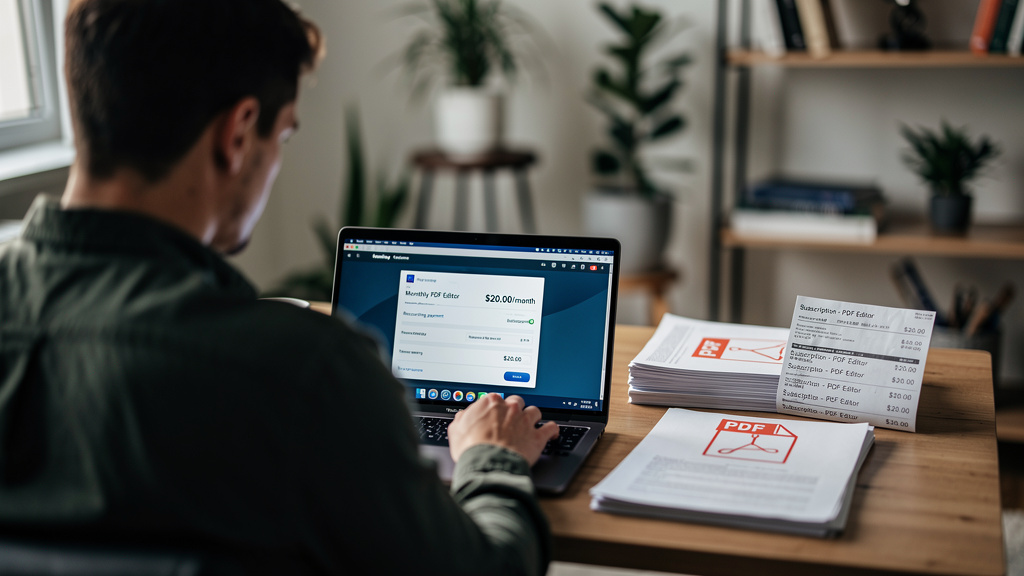
Stop Paying $20 a Month Just to Edit a PDF
I have paid Adobe roughly $240 a year for the privilege of fixing a typo on a tax form. That is not an exaggeration. For three years, my wife and I each kept an Acrobat subscription because every now and then a PDF came across our desk that needed a signature, a date change, or one stubborn word swapped. Adobe charged us both $20 a month for the privilege, and we paid it without thinking. Then we did the math and replaced it with a free local tool that does 95% of what we were paying for. Here is the bill, the tool, and the parts you actually have to give up.
The real cost of “cheap” PDF software
Adobe Acrobat Pro runs $19.99 per month for individuals. The Acrobat Standard tier is $12.99. There is also a separate “Acrobat Sign” product that bills per document. The pricing page is a maze of trial offers, annual prepay discounts, and add-on fees. If you read the small print, you find that the “AI Assistant” features cost extra, the mobile app is a separate subscription, and the storage tiers all bill monthly.
If you only need to edit text, fill a form, sign a document, merge two PDFs, or reorder pages, that $240 a year per seat is a lot. For a family of two, it is $480. For a small team of five, it is $1,200 a year. None of that money buys you anything fancier than the editing features built into a free alternative.
There is a long history of “PDF editor” products that all look the same on a feature comparison page. Foxit, Nitro, PDF Expert, PDFelement, Smallpdf, iLovePDF, Soda PDF, Sejda, PDFescape, and a dozen browser-based tools all charge between $8 and $20 per month. The market is full of products that look interchangeable because, at the user-facing layer, they are. Underneath, they all do roughly the same job: text editing, form filling, signing, page management, and OCR (optical character recognition, the process of turning a scanned image into searchable and editable text).
OCR is where most of them differentiate. The browser-based tools do not do it locally, which means your document goes to a server first. Some store the file temporarily, some do not, and the privacy story is rarely clear. Acrobat does OCR locally. Foxit does OCR locally. The free local alternative I will describe also does OCR locally, on your own machine, with no upload.
The free tool I switched to
The tool is PDFgear, a free desktop PDF editor for Windows, Mac, iOS, and Android. It is a single installer, no account required, and the free tier is not a “free trial” of a paid product. The free tier is the product. There is a paid “PDFgear Pro” tier at $9.99 per month, but the free tier has every feature I actually used in Acrobat.
The install took about 90 seconds on my Mac. The app does not phone home, does not require an email address to use, and does not show ads inside the editor. It opens, it shows you a document, and it lets you edit.
I want to be clear about what “edit” means here, because PDF editing has two distinct flavors and people get them mixed up. The first flavor is editing a PDF that was generated from a real text source, like a Word document exported to PDF. The original text is still in the file, just rendered into a fixed layout. You can click on a word, change it, and the layout reflows. The second flavor is editing a scanned document, where the PDF is just a flat image of a page. To edit text in a scanned PDF, you need OCR to recognize the characters first. PDFgear handles both. For the second case, it runs OCR locally and lets you edit the recognized text. The OCR is not as polished as Acrobat’s, but for clean scans it works fine.
The features I use most:
- Edit text. Click a paragraph, type over it, change a date, fix a typo. Works on text-based PDFs out of the box, on scans after running OCR.
- Fill and sign forms. Drop a text field on a form, type your name, save. The signature tool lets you draw with your mouse, type your name in a script font, or import an image of your signature.
- Merge and split. Combine 12 monthly statements into one PDF, or pull pages 4 through 9 out of a 30-page contract.
- Reorder pages. Drag-and-drop the page thumbnails. Useful when a printer wants pages in a specific order.
- Convert to and from PDF. PDF to Word, Word to PDF, PDF to JPG, JPG to PDF. The conversion is local.
- Compress. Shrink a 40 MB scan to under 5 MB before emailing it.
There are 24 distinct tools in the sidebar, covering most of what Acrobat does. I have used about a third of them. The ones I have not used, I do not pay for.
What I actually gave up
I am not going to pretend PDFgear is a 1:1 replacement for Acrobat. It is not. Here is the honest list of what I lost when I made the switch.
Acrobat’s deep review and comment workflow is the first thing I missed. Acrobat has a side panel for adding sticky-note comments, threaded replies, status flags, and tracked changes. PDFgear has comments, but the review workflow is thinner. If your team lives in shared PDFs with tracked changes and reviewer initials, you will miss Acrobat. For a single user editing a contract or signing a form, this is invisible.
Adobe Sign and the broader Acrobat Sign ecosystem is the second gap. Acrobat integrates with Adobe’s e-signature product, which has its own legal and audit trail story. PDFgear has a signature tool, but it is a drawing canvas, not a regulated e-signature platform. For a real estate closing or a contract that needs a verifiable e-signature with timestamps and identity proofing, you need a dedicated e-sign product. DocuSign, Adobe Sign, and Dropbox Hello Sign are the main ones. The good news is that for personal use, a typed or drawn signature on a PDF is legally valid in most US states under the E-SIGN Act. For business use, check with your legal team.
Advanced redaction is the third. Acrobat Pro has a “Redact” tool that genuinely removes sensitive text from a PDF, not just covers it with a black box. PDFgear has a “Blackout” tool that draws a black rectangle over content. For most use cases that is fine. For legal or medical documents where the underlying text needs to be permanently removed from the file, you want Acrobat’s actual redaction.
Polished OCR on dirty scans is the fourth. Acrobat’s OCR engine is better on wrinkled receipts, faded faxes, and low-resolution scans. PDFgear’s OCR works on clean scans and acceptable on messy ones. If you regularly OCR warped, faded, or handwritten text, the gap shows.
Mobile parity is the fifth. The iOS and Android apps exist, but the desktop app is clearly the focus. If your main workflow is editing PDFs on a phone, the free tier of Acrobat on mobile is more polished.
Trade-offs
PDFgear is not free in time. The first time you open it, you spend a few minutes poking around the sidebar. The interface is not as polished as Acrobat’s. Buttons are slightly oversized, the toolbar has more icons than Adobe’s minimalist approach, and the dark mode is functional but not pretty. None of that is a deal-breaker, but it is a step down from the $20-a-month experience.
There is also a versioning quirk. PDFgear updates the desktop app frequently, and the major-version numbers move fast. I have seen three major versions in a year. The free tier does not always keep the same feature set between major versions. A tool you like today might move behind the Pro paywall tomorrow. I would not be surprised if some of the features I use most end up paid-only in a future release.
Privacy is the other thing to think about. PDFgear is made by a Chinese company. The desktop app does not require an account and the company states the app does not upload your documents. There is no way to fully verify that claim, and “we do not upload” is a promise, not a protocol. If you handle sensitive legal, medical, or financial documents, you may want a tool with a clearer privacy story, like LibreOffice Draw (a free, open-source desktop app that can edit PDFs but is rougher to use) or the open-source Stirling PDF (a self-hosted browser-based tool that runs entirely on your own server). I will cover those in a future article.
For a family or a small team that uses Acrobat for the 80% case, the math is simple. Two seats at Acrobat Pro costs $480 a year. Five seats costs $1,200 a year. Ten seats costs $2,400 a year. PDFgear is free for all of those, and the 20% of features you lose are features most people do not use.
What I would tell past me
If I could send a message back to the version of me who first opened Acrobat and entered a credit card, I would say three things.
- You are not paying for the editing. You are paying for the inertia. Adobe made the PDF format and the default PDF reader. That default is the entire business model. The format is open. The reader is not the only editor.
- A “free tier” of a paid product is a free trial dressed up. PDFescape, Smallpdf, and the others all do this. The free tier works for a week, then a feature you need goes behind a paywall, then you are paying $10 a month for a worse version of Acrobat. PDFgear’s free tier is the product. That distinction matters.
- OCR is the only feature that justifies a paid PDF editor. If you OCR scanned documents all day, Acrobat is worth the money. If you edit text PDFs and fill forms, you do not need it. Know which one you are.
Bottom line: if you use Acrobat for editing text PDFs, filling forms, signing documents, merging files, and the occasional redaction, PDFgear replaces it. You will save $240 a year per seat. The features you lose are features you probably never touched. The features you keep are the ones that made you open Acrobat in the first place.