
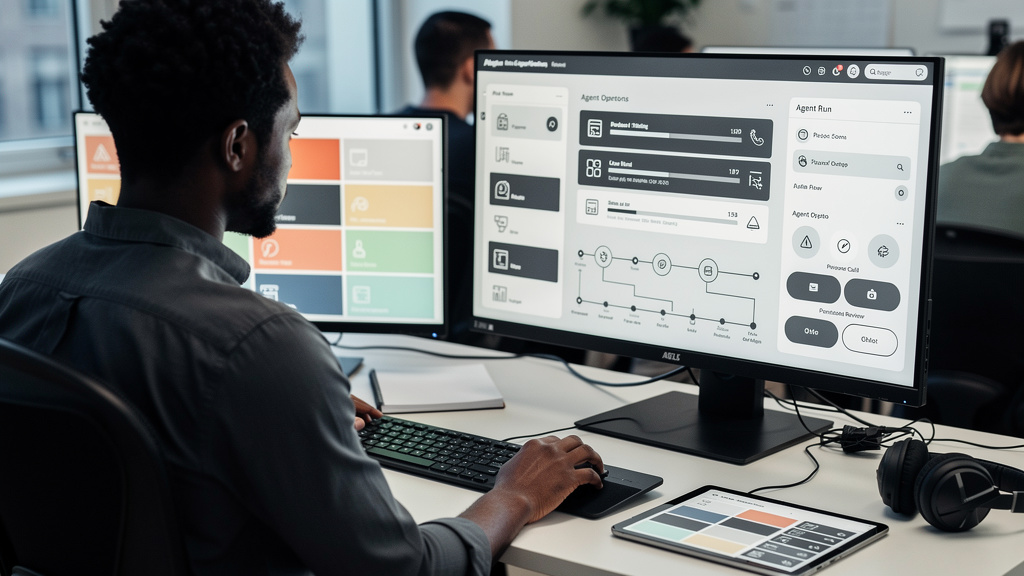
Anthropic ships Claude Code in two surfaces that share the same underlying model and the same prompt history. The terminal version was the original, built by a small team that wanted something they could run themselves. The desktop app came later, after the terminal version was already shipping to paying customers. They are not competing products in any meaningful sense. They are two different doors into the same brain, and the right door depends on what your work looks like.
The shortest way to think about the split is that the terminal version writes into the void and the desktop version does not. A terminal session reads your prompt, generates code or text, and prints the result. Whatever the result is for, you go look at it somewhere else. The desktop app reads your prompt, generates the same kind of output, and has a hook into what is on your screen. That hook is the entire difference. Whether the difference matters for you depends entirely on whether your work involves things you can show a model.
When the desktop app earns its keep
The desktop app’s main job is giving Claude a pair of eyes. Specifically, it lets you drop a screenshot into the chat and ask Claude to do something about what is in the screenshot. That sounds like a small feature. It is not, because the alternative is describing the thing in words, and most people are bad at describing what they see with enough precision for a model to act on.
The cases where this matters are concrete. You are building a UI and the spacing on a form looks wrong. You are debugging a layout that breaks on mobile. You are working in a design tool and you cannot articulate which element is off. You are looking at a screenshot of an error message and want Claude to read it without you retyping it. None of these are exotic. They are the daily friction of working on anything visual, and they get faster the moment you stop being the camera.
A practical workflow looks like this. Open the Claude desktop app. Start a new Code session. Drop a screenshot of the thing you are working on. Ask it to suggest a change or explain what it thinks is wrong. Iterate by sending more screenshots as the design changes. The loop is short, and the feedback quality is higher than the alt-tab-and-describe workflow that the terminal version forces on you.
The desktop app also handles some things the terminal cannot. It can see windows that are not browser tabs. It can read editors, design tools, terminal emulators, and any other GUI application you have running. It can take a screenshot of a single region instead of the whole screen. None of these are killer features on their own, but together they cover the visual side of working on software in a way the CLI never will.
When the terminal is the only choice
There are categories of work where the desktop app cannot help you, and pretending otherwise would be misleading. The terminal version of Claude Code runs headless. That is its superpower. It can run in CI. It can run on a server. It can run as part of a cron job. It can run unattended while you sleep. None of those scenarios have a screen for Claude to look at, and that is the point.
The terminal is also the right choice if your work is heavy on keyboard-driven workflows. If you live in tmux, in Vim, in a custom shell setup, or in any environment where your hands stay on the home row, leaving it for a GUI costs you speed every day. The Claude terminal fits inside that workflow without breaking it. The desktop app does not. You can run both, and plenty of developers do, but the terminal session is the one that lives next to their other terminal tools.
The terminal is also the better choice for big repositories with complex orchestration. Parallel agents (a feature Anthropic has been steadily improving) work more cleanly in the CLI. Multi-session management, where you have three or four Claude sessions running in different directories on different parts of the same problem, is easier in the terminal than in the desktop app. The desktop app is a single window with a single chat. The terminal is a multiplexed environment.
- Headless or scripted runs: CLI only.
- Keyboard-first workflows in tmux, Vim, or custom shells: CLI fits.
- Multiple parallel agents on different parts of a codebase: CLI is cleaner.
- Browser-only inspection tasks: CLI plus the Chrome extension.
- Visual work, design work, anything where you can show Claude a screen: desktop wins.
What the Chrome extension actually does
Anthropic ships a Claude in Chrome extension that bridges some of the visual-work gap from the terminal side. It lets the terminal version of Claude Code look at the contents of a web page. For browser-only tasks, this is genuinely useful. You can ask Claude to navigate, click, fill in a form, and report what it sees, all without leaving the terminal.
The extension is a clever bridge, but it is a bridge to one specific kind of surface. It does not help when the thing you need to show Claude is your editor, your design tool, your terminal emulator, or any window that is not a browser tab. For those, you need the desktop app. For work that happens entirely in a browser, the extension plus the terminal is close to equivalent to the desktop app, and it stays in the keyboard-first workflow that terminal users prefer.
The honest split is that the Chrome extension closes maybe forty percent of the gap between the two. For the remaining sixty percent, the desktop app is the only clean option. If your work is mostly in a browser, you can stay in the terminal with the extension. If your work is spread across applications, you will end up in the desktop app for the visual tasks and the terminal for the keyboard tasks.
How to think about which one to open first
A useful heuristic is to open whichever surface matches the way you think about the task. If you can describe the task in a paragraph of words and you do not need Claude to see anything, the terminal is the faster path because you stay in your flow. If you find yourself reaching for a camera or thinking about screenshots, the desktop app is going to be faster because the round-trip between description and screenshot is shorter.
Another useful heuristic is to think about who is reviewing the work. If you are the only person who needs to understand the output, the terminal is fine because you can interpret the wall of text Claude produces. If you are sending screenshots to a collaborator or showing them to a designer, the desktop app’s screen-grab feature is going to save you a step. Both produce the same code. Only one of them has the screen-grab workflow that some kinds of collaboration need.
The third heuristic is about interruption cost. If you are mid-flow in your editor and the task can wait, the terminal is fine because you can ask Claude in another pane and read the answer when you are ready. If you are mid-flow in a design tool and the task is blocking the design, the desktop app saves you the alt-tab round trip. Both are about minimizing friction, but the friction they minimize is different.
Trade-offs
The honest summary is that the two surfaces are not fighting each other. They cover different parts of the same job, and most people who use Claude Code daily end up using both, switching based on the task at hand. The cost of having two doors is small. The cost of pretending one door is the only door is real, because you end up forcing tasks into the wrong surface and wondering why it feels like work.
The trade-offs the desktop app forces on you are mostly minor. It runs in a separate window, which means your keyboard-driven workflow has to break to switch into it. The screenshots it captures have a quality ceiling that the model can sometimes misinterpret. The session history is tied to the desktop app, so if you prefer the terminal for archival, you have to copy things over manually. None of these are dealbreakers. They are costs to weigh.
What the terminal forces on you is also mostly minor. You become the camera for visual tasks, which adds a round trip and loses precision. You cannot look at your own screen without describing it. You have to break your flow to take a screenshot with an external tool, paste it in, and then describe it. The result is usually worse than what the desktop app would have produced in the same time.
Choosing between them is not about which is better. It is about which is better for the task you are doing right now. Pick the door that matches your brain and your screen, and stop forcing the other one to do the job it was not built for. Most people who do this find they stop fighting the tool within a week.