
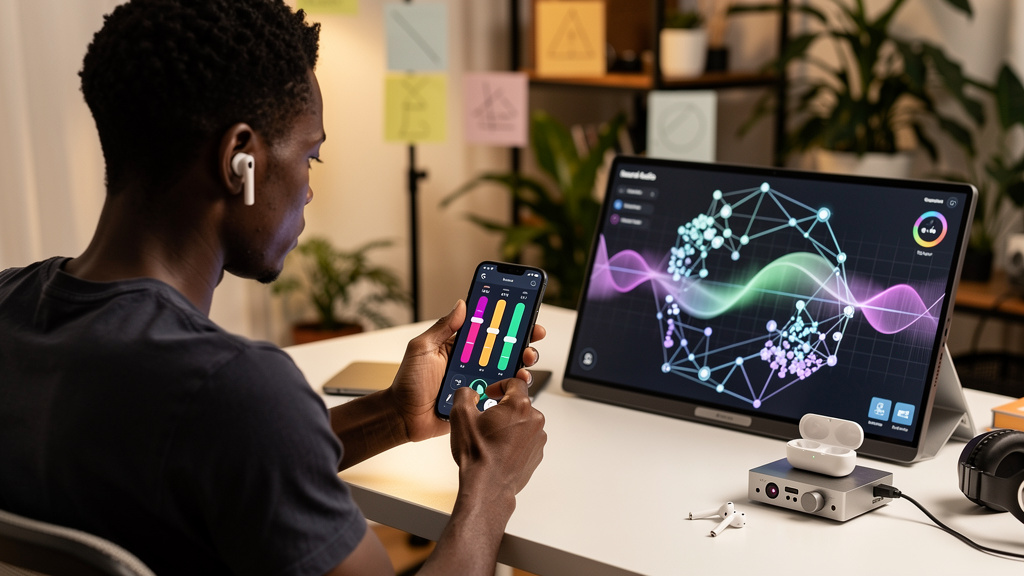
Apple’s new equalizer is useful precisely because it is modest. It does not turn an iPhone into a recording console, and it does not offer a library of elaborate profiles. It gives compatible AirPods owners three broad controls, a reset button, and a recommended option in the place where the headphones are already configured. That is enough to correct a sound you dislike, provided you approach it as a small adjustment rather than a hunt for a magic setting.
The feature is part of iOS 27 and requires an audio device with an H2 chip or later. The source list names AirPods Pro 2, AirPods Pro 3, AirPods 4, and AirPods Max 2. The same custom EQ is also available on iPadOS 27 and macOS 27. If the menu is absent, compatibility and software versions are the first things to check.
Start with the software and hardware gate
Do not begin by looking for the slider. First make sure the feature can appear at all. The phone must be running an eligible iOS 27 release, and the connected AirPods must be one of the supported models. The update path is straightforward:
- Open Settings on the iPhone.
- Choose General.
- Tap Software Update.
- Install iOS 27 if an update is offered.
The AirPods firmware matters too. Connect the earbuds to the iPhone, open their settings page, and look for AirPods Beta Updates. If the AirPods entry is not visible, open Bluetooth, tap the information button beside the earbuds, and continue from there. The source says the phone should have an internet connection while the AirPods are connected so the firmware can update automatically.
That beta-update switch is not an equalizer control. It is part of the preparation. Treat it separately, and do not assume that changing it instantly creates the audio menu.
Find the three controls
Once the software and device qualify, open Settings and tap the connected AirPods. Bluetooth offers another route: tap the information button next to the device. From that page, follow Audio and Routing, then Equalizer, then Custom.
The controls are broad rather than surgical:
- Lows change the amount of bass in the output.
- Mids change the presence of vocals and other central frequencies.
- Highs change treble, including the brighter edge of many recordings.
- Reset returns the custom adjustment to its starting state.
The source describes a line above as high and a line below as low. That is a useful mental model, but do not treat every track as a measurement. A bass-heavy song can make a small low-end increase feel excessive, while a quiet vocal recording may benefit from a little more midrange. Change one area, listen, and then decide whether the next change is actually solving a problem.
Use a problem-first tuning method
The easiest way to make an equalizer worse is to move every slider because the controls are there. Instead, name the complaint before touching the setting. Is the music thin? Is a singer difficult to hear? Does the treble feel too sharp? Each answer points to a different, limited adjustment.
A practical sequence looks like this:
- Pick familiar music with a clear vocal or instrument.
- Change only lows, mids, or highs first.
- Listen for whether the original complaint is smaller.
- Try a second track before keeping the change.
- Use Reset if the result is less natural than the default.
This is advice, not a claim that the source measured a particular frequency response. The available controls are broad, so the same slider movement can help one recording and hurt another. A setting that makes a bass-light track feel fuller may make a dense mix muddy. More treble can reveal detail, but it can also make a bright recording tiring.
The Recommended option is a sensible comparison point. Apple describes it as the default recommended sound signature. Switch between Recommended and Custom rather than assuming Custom must be better. If you cannot reliably tell which version you prefer after a few comparisons, the default is doing its job.
What the feature does across Apple devices
The custom EQ is not limited to music in the source description. It applies to media playing on the iPhone, including videos and TV shows. It also works with Spatial Audio and Adaptive Audio, although those are separate settings with separate purposes. Custom EQ adjusts lows, mids, and highs; it does not replace the controls that position sound or alter how the AirPods respond to the environment.
The source also says the setting works on iPadOS 27 and macOS 27. That makes the feature more useful for people who move between Apple devices, but it does not mean the menu will appear on every AirPods model. The H2 requirement remains the important boundary.
There is currently one custom profile rather than a collection of saved profiles. That changes how you should use it. If you regularly switch between spoken audio, orchestral music, and bass-heavy tracks, you cannot treat Apple’s menu as a preset manager. You can still make a general adjustment, but it is worth remembering that a single setting has to cover all the media you play.
Trade-offs
The benefit is convenience. The equalizer is built into the operating system, so you do not need a third-party app that may have compatibility problems or may only process certain audio paths. The reset and Recommended choices also make experimentation reversible.
The limitation is control. Three broad bands are not the same as a multi-band equalizer, and one profile is not the same as separate settings for different listening situations. The source calls the current implementation basic, and that is the fair description. It gives you a useful correction layer, not a complete audio-workstation feature.
Another trade-off is judgment. A custom curve can make a familiar track more exciting for a minute while making a long listening session less comfortable. There is no source-supported number that tells you the correct position for each slider. Listening across more than one kind of content is safer than copying a dramatic curve from someone else.
If the option is missing, the troubleshooting path is similarly limited: confirm iOS 27, confirm the AirPods model has an H2 processor, and confirm the AirPods firmware path. Do not treat a missing menu as proof that the phone’s settings are broken.
The useful stopping point
Apple’s iOS 27 custom EQ is a small tool with a clear use case. It lets owners of supported H2-based AirPods correct broad problems with bass, vocal presence, or treble without installing another application. Start by checking the operating system and model, find the menu through the AirPods settings or Bluetooth, adjust one band at a time, and compare the result with Recommended.
That approach respects what the feature is. It is not a promise of perfect sound and it is not a replacement for a full equalizer. It is a convenient way to make a few reversible changes, then stop when the music sounds more natural to you.
You do not need to keep adjusting the controls once the original problem is gone. The best setting is the one that makes listening easier without becoming another project to manage.