
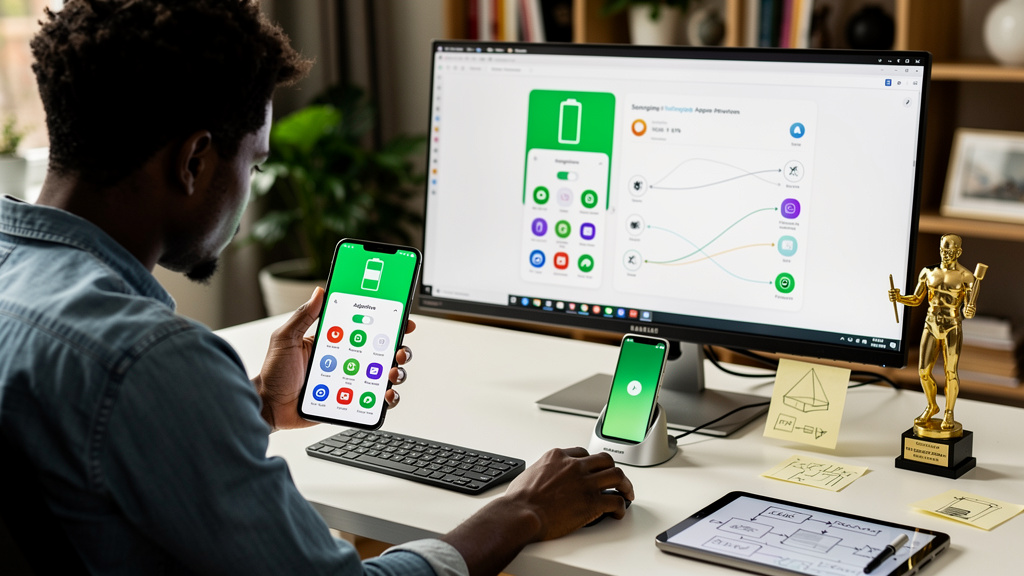
I lost a week of doorbell chimes before I figured this out. The fix is small. The diagnosis is the hard part, because Samsung renamed the relevant setting without telling anyone, and the new name is doing its best to make sure you never find it.
The setting used to be called Adaptive Battery. On a Galaxy running One UI 9, it is now Sleeping apps, parked in a sub-menu most people have never opened. Both names point at the same switch: the one that decides whether your apps get to ping you right away or get demoted into a low-priority background bucket where they wait ten minutes for permission to notify.
That is the article in one sentence. Everything below is the how and the why, and the part most guides skip, which is that turning the switch off does not always fix the alerts you actually care about.
The exact path, written so you do not have to dig
On a Galaxy running One UI 9, the path is Settings, Battery, Background usage limits, Sleeping apps, and then move apps into Never sleeping. On a Pixel running stock Android, the path is Settings, Battery, Adaptive Battery, and turn it off. Three screens versus one. That is half the problem with the Galaxy version: it is buried where most people will never look.
What Adaptive Battery actually does, and why Samsung renamed it
Android has a built-in background management system that watches how often you open each app and quietly demotes the ones you barely touch. Apps you use every day sit at the top. Apps you have not opened in three months sink to the bottom. The deeper an app sits in that ranking, the harder Android throttles its background work. The system uses six named tiers, and most people will never see them:
- Active, the foreground app you are looking at right now
- Working Set, apps you opened recently and are likely to return to
- Frequent, apps you open most days
- Rare, apps you barely touch
- Restricted, apps you flagged or that Android decided to punish
- Never, apps that cannot run anything in the background at all
High-priority notifications bypass most of that. They travel through Firebase Cloud Messaging, which is Google’s push notification service. FCM is supposed to wake an app just long enough to show a banner, without requiring the app to do all the heavy background work. That only works if the app developer wired FCM correctly. When an app uses FCM poorly, the alert gets stuck behind the same throttle as a game you have not opened in months.
Adaptive Battery is the toggle that loosens the bucket system. Turn it off and Android stops pre-judging your apps. Every notification, even ones for rarely used apps, gets fast delivery.
So why did Samsung rename it? The honest answer is branding. Samsung has a habit of renaming stock Android features when it folds them into One UI, and the renames often obscure rather than clarify. “Adaptive Battery” tells you exactly what it does. “Sleeping apps” tells you it has something to do with power management. The cost of that rename is that people who knew the old name cannot find the new one, and people who have the new name cannot tell what it does.
The fix is not Samsung renaming it back. The fix is you learning both names.
Why flipping the toggle does not always fix the alerts you care about
This is the part most guides skip, and it is the part that decides whether your fix actually works.
Adaptive Battery relaxes the bucket system. It does not add a guaranteed delivery lane. Your notifications still travel through FCM, and they still depend on each app developer having implemented FCM correctly.
Apps with solid FCM integration start arriving in real time the moment you flip the toggle. Apps with sloppy or absent FCM support keep arriving late regardless, because the delay is in the app, not in Android. A handful of apps wake up too often once unrestricted and chew through battery as a side effect.
The honest move when one specific app is still slow after you flip the toggle: the bottleneck is in that app’s code. Email the developer. Try an alternative. Or accept that the app you like is simply not built for real-time alerts. None of those are settings problems.
How to verify the change actually did anything
Do not assume the toggle worked. Run a test that costs nothing.
Send yourself a Slack message from another device and time how long it takes to arrive. Ring the smart doorbell once and watch whether the alert lands in under five seconds. Trigger a package tracking update from the carrier app. Wait overnight with the new setting and check standby drain in Settings, Battery.
Then run the same tests again the next day with the toggle turned back on. The before-and-after gap is the proof. If the gap is small, the bucket system was not the bottleneck and you have just added a small amount of battery drain for no benefit. If the gap is large, you have been missing real alerts for longer than you realized, and the fix was worth the cost.
The honest summary is this. If you own a Galaxy and you have been assuming the phone was just slow, do not stop at assuming. Open Settings, search for Adaptive Battery, and if you find nothing useful, navigate to Battery, Background usage limits, Sleeping apps, and move the apps you actually rely on into Never sleeping. Run the test I described above. You will either confirm the fix worked, or you will discover the slow app is the app’s fault, not Android’s.
Trade-offs
There is a real cost to disabling Sleeping apps, and you should know what you are agreeing to before you flip the switch.
Battery life drops. Most people lose somewhere between five and twelve percent of their standby drain overnight, with foldables on the high end because they keep more apps warm in the background. That is what you pay for letting every background task run unrestricted.
Notification volume goes up. Without the bucket system quietly triaging things for you, you see more notifications total, including the ones you had been silently ignoring. The first few days feel noisier than before. Most people settle in once they realize how many of those notifications were actually useful.
A middle path exists. Instead of disabling Sleeping apps globally, move only the apps whose alerts you cannot afford to lose into Never sleeping. The package tracker. The doorbell. Whatever app carries the alerts that genuinely matter to your day. Everything else can stay in the default bucket system. You keep most of the benefit without the full battery hit.
If you only do one thing from this article, open Settings right now and search for “Adaptive Battery.” If you find it on your Pixel, turn it off. If you find nothing useful on your Galaxy, navigate to Battery, Background usage limits, Sleeping apps, and move at least one critical app into Never sleeping. Send yourself a test ping. That single change is usually enough to surface an alert you had no idea was being silently dropped.