
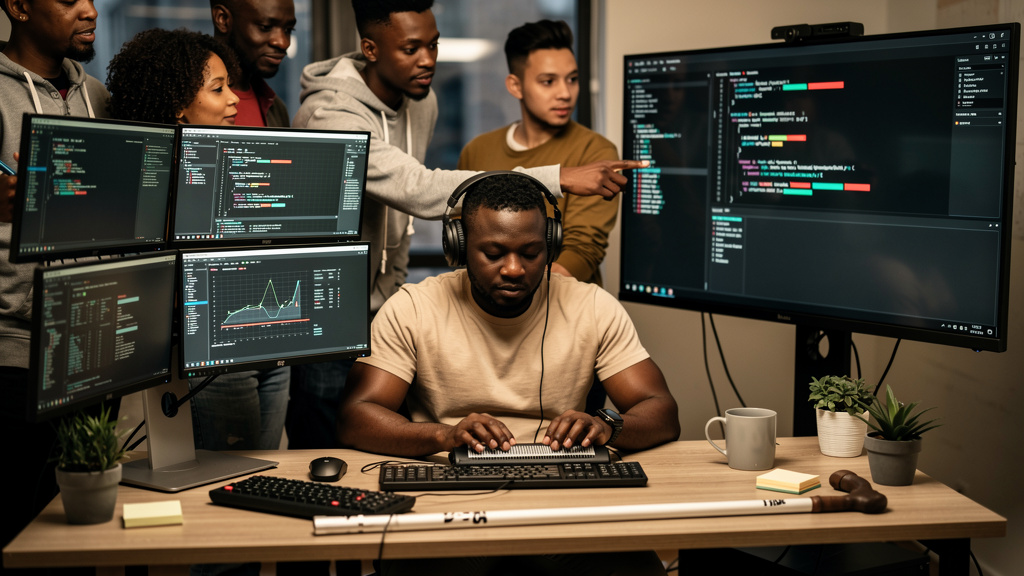
The Blind Programmer Who Codes 20+ Languages Without Ever Seeing Code
Ali Abdulghani has never seen a line of code in his life. Not one character, not one bracket, not one semicolon. He has been completely blind since he was a year old, lost to the kind of pollution damage that follows war. And yet he has built a Linux distribution from the ground up, maintains a dozen open source projects, and writes in more programming languages than most developers have heard of.
I have read a lot of tech stories over the years, but this one stopped me cold. Not because of the tragedy angle, which the original interview plays up pretty hard. But because of what it reveals about how we think about programming itself. If you strip away the visual crutches, the syntax highlighting, the IDE autocomplete, the drag-and-drop builders, what is left? Just structure. Logic. The willingness to read documentation until it sticks.
How a blind programmer actually writes code
Ali reads the source code of libraries that have no documentation. That is how he learns. He is not scanning with his eyes. He is reading with his ears, using the Orca screen reader on Linux (Orca is a free, open-source screen reader that speaks UI elements and text content aloud, built on the AT-SPI accessibility framework), moving through Emacs one spoken character at a time. And he is reading thousands of lines of unfamiliar C and Python and Rust to find the API he needs.
The technical setup is part of the story. Ali uses Emacs with the Emacspeak package, which adds proper screen reader integration to the editor. He uses a refreshable braille display for code review (a hardware device that raises and lowers pins to form braille characters under your fingertip, line by line, the same way a screen would refresh visually). He uses a Linux distribution he built himself because the off-the-shelf distros did not handle braille display drivers the way he needed. Every layer of his stack is customized because the defaults were not accessible enough.
The thing that struck me reading his story is how much of programming is actually about structure rather than appearance. When you cannot see the code, you cannot rely on indentation to spot the control flow. You cannot glance at the screen and find the function definition. You have to build a mental model of where everything is from the names and the order you encounter it. That mental model is the same one experienced developers carry in their head even when they have working eyes. Ali just does not have the option of falling back on visual pattern recognition when the mental model fails.
What I learned from his approach
Three things stood out to me, and they are not what you would expect from a feel-good human interest piece.
First, his tooling is ruthlessly text-only. No graphical IDE. No syntax highlighting themes. No fancy file trees. He uses Emacs because it works well with a screen reader and he has spent years customizing it. The lesson is that the visual IDE features most developers consider essential are not actually essential. They are nice. They speed up common tasks. But you can write serious software without them.
Second, his debugging workflow is different in ways that are instructive for anyone. When a sighted developer sees a stack trace, they scan it visually, look for the function name they recognize, click on it, and land in the source. Ali has to listen to the stack trace one symbol at a time, remember the important parts, navigate to the file by name, then navigate to the line by line number. He is doing the same task. It just takes longer per operation. The compensation is that he often catches errors that visual debugging misses, because he is forced to actually read every character.
Third, he treats documentation as a finite resource. Most developers I know skim documentation. We ctrl-F for the function name we want, copy the example, paste it in, and move on. Ali reads the full text of every API page he needs, because the cost of going back is higher when you have to navigate by keyboard and listen to every word again. This sounds slow. It produces code that is actually correct the first time more often than the average developer’s code.
Why his Linux distribution matters
Ali’s Linux distro, called “RaspArch” and a few related projects he maintains, is not the interesting part on its own. There are hundreds of small Linux distros. What is interesting is that he built it specifically to make his own screen reader setup reliable. The default distros had braille display drivers that worked most of the time but broke after kernel updates in ways that left him without a working computer for days.
The fact that a single developer can build a Linux distribution that solves a problem commercial vendors ignore is not new. What is new, to me, is the framing. Ali did not set out to build a distro for blind users in general. He built a distro for himself, with the specific hardware he owns and the specific workflow he has. The generality came later, when other blind developers found his work and started using it.
This is the kind of project that does not show up in the technology press because it is not a product. There is no company behind it. There is no funding round. There is one developer in Iraq with a braille display and twenty years of muscle memory building the tool he needs to do his job. It works for him. It happens to work for a few hundred other people with similar setups. That is the whole story.
Trade-offs
Accessibility tooling that Ali depends on is not portable. If you switch from Linux to macOS or Windows, your screen reader setup changes completely. The keyboard shortcuts are different. The braille display drivers are different. The Emacs configuration is portable but the screen reader integration is not. Ali has effectively locked himself into Linux because the cost of relearning his entire workflow on another operating system is too high.
Performance cost of running a screen reader is real. Orca and Emacspeak add latency to every interaction. Ali has optimized his setup to minimize this, but a fast Linux box with a good braille display is still slower than the equivalent visual setup. The compensation is that Ali’s accuracy rate is high enough that he does not need to retype or rebuild as often. The total time per task is similar.
Community around Ali’s projects is small. There are a few hundred users of his Linux distro and a few hundred more contributors and testers across his other projects. If you depend on his work and he stops maintaining it, the projects will bitrot within a year or two. The risk is the same as for any single-maintainer open source project. The mitigation is that his work is well-documented and the source is available, so someone else could pick it up. But “someone could” is not the same as “someone will.”
If you are a sighted developer reading this and feeling inspired, do not stop at inspiration. The most useful thing you can do is audit your own projects for accessibility. Most open source projects I have worked on treat accessibility as a “later” problem. It never becomes a “now” problem until someone files an issue. File the issue. Or better, send the pull request. The bar for accessibility contributions is low because almost nobody is doing the work.
If you want a starting point, here are four things you can do this week.
- Add proper label associations to every form input in your web projects. A
<label for="email">next to your email input is the difference between a screen reader user being able to fill out your form and being stuck on the page. It takes about 30 seconds per input. - Test your project with the keyboard only. Unplug your mouse for an hour and try to use your own product. Every place you get stuck is a place a screen reader user gets stuck.
- Check your color contrast ratios. The WCAG AA standard (Web Content Accessibility Guidelines, the international accessibility standard) requires 4.5:1 contrast for normal text and 3:1 for large text. Most design systems fail this. Run your UI through a contrast checker and fix the obvious violations.
- Document the keyboard shortcuts in your tool’s README. Even if your tool has only three shortcuts, list them. Users who cannot use a mouse have no other way to discover them.