
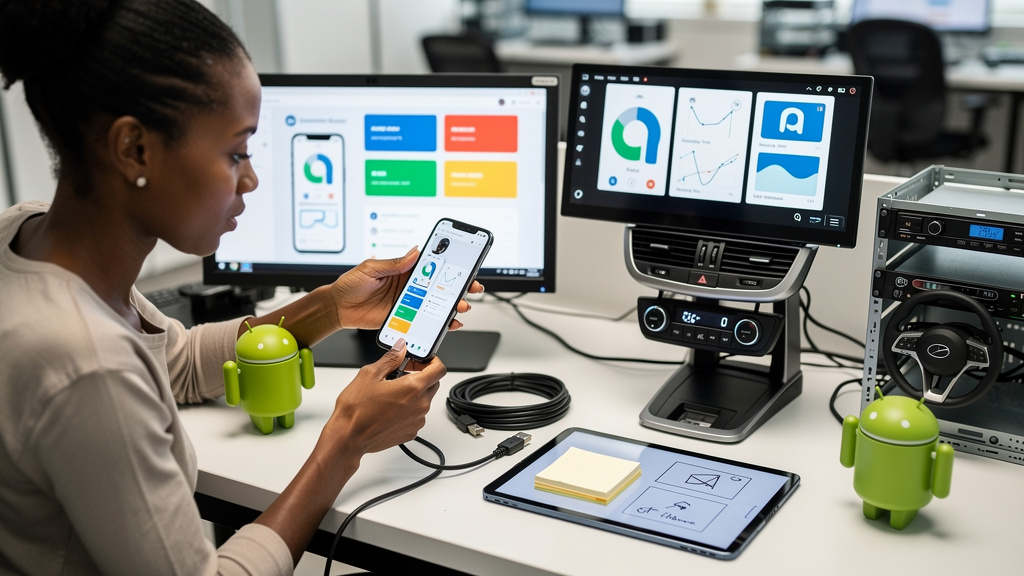
The map view freezes as you approach the turn. The music cuts out mid-song. You stab at the head unit hoping the picture comes back before the exit. If that sounds like your last few drives, you are in the same boat as thousands of other Android Auto (Google’s in-car phone projection that mirrors navigation, calls, and music onto your dashboard screen) users. Google’s official answer for the disconnects this month is an app update. The answer is worth installing. It is also worth treating as one of several things to try, because in-car projection lives at the intersection of phone firmware, head-unit firmware, and the cable between them, and a single point release rarely fixes the whole stack.
This is what the 17.4 release actually delivers, the honest pattern behind the freeze fixes that have shipped so far this year, and a working list of things you can try tonight if the update alone does not solve it.
What 17.4 actually delivers
A Google staffer who works the official Android Auto support forum posted that the team has shipped a fix for the disconnection reports that have been filling the threads. The fix is bundled inside the Android Auto app, and the entire official procedure is to update the app to 17.4 or above. The update does not need a new operating system on your phone. If you are on Android 10 or newer, you will see it in the Play Store, and it installs in about a minute.
After the install, you reconnect your phone to your car the same way you always do, wired or wireless, and test with a short drive or even a parked session with the car on. That is the entire procedure. There is no setting to flip. There is no special cable requirement that Google is asking for. There is no incantation. If the freeze was caused by the specific thing this build fixed, the freeze is gone. For everyone else, this update is a no-op and the next section is the one to read.
Why this is the third “we fixed it” of the year
This part matters, because it tells you how much faith to put in the official line. Google has told Android Auto users that a freeze fix is shipping at least three separate times in 2026. The spring 17.2 release was aimed at wired disconnections specifically. The early-July 17.3 release was supposed to address the in-car infotainment platform crashing for users who saw that symptom. Each of those releases helped some users and left everyone else exactly where they started. A separate disconnection bug earlier in the summer hit Samsung and Pixel users because of how Google’s Advanced Protection feature interacted with Play Services. That one resolved for most users after a separate update.
Three “we fixed it” moments in eight months is a pattern, and the pattern is the lesson. Android Auto is not a single program that breaks in one way. It is a phone running Android, a phone service running in the background, a Bluetooth handshake for calls, a USB or Wi-Fi link for screen mirroring, and a head unit (the screen-and-radio module built into your car’s dashboard) running its own firmware stack. Each release fixes one or two layers in that chain and leaves the rest alone. If your personal freeze was caused by the layer 17.4 happened to touch, you are done. If your freeze was in a different layer, you will be reading the troubleshooting list below tomorrow.
I do not say that to be cynical. Google clearly has a large team working on this and clearly knows the problem is real. I say it because the expectation that a single build will end the freezing on the first try is not what the previous two releases earned.
The actual failure modes behind the freeze
Android Auto is screen mirroring, not a standalone app. Your phone renders the screens, the audio is mixed locally, and a real-time feed of audio and video is pushed to your car over USB or Wi-Fi. Every link in that chain is a thing that can fail, and most of them are not bugs in Android Auto itself.
The most common culprits, in my experience, are environmental rather than software. A USB cable that charges fine but cannot sustain the data rate the mirroring needs is one of them, and a charge-only cable is the most common version of that problem. Wireless projection that shares a radio with your car’s hands-free calling Bluetooth profile is another, because the two protocols step on each other and one usually wins. Phones that aggressively manage background processes will kill the Android Auto service while you drive, leaving the head unit waiting on something that no longer exists. Android’s Advanced Protection feature has been a known trigger for some phone models. Finally, third-party launchers and aggressive home-screen customization apps that hook into Android at low levels can break the projection handshake in ways that look like freezes.
None of those failure modes is an Android Auto bug. They are all conditions the projection stack has to coexist with, and that is part of why one app update rarely clears the whole problem.
What to try tonight if 17.4 does not solve it
If you have updated and the freezes are still happening, this is the order I would run, starting at the cheap resets and working toward the disruptive ones. Most users will see the problem clear inside the first two or three steps, and a small number will need to walk the whole list.
- Force-stop Android Auto from your phone’s app settings, then reopen it. This is the cheapest possible reset and clears any stuck sessions from the previous drive. Try it first.
- Cycle Bluetooth and Wi-Fi off and back on. This resets the wireless handshake for both hands-free calling and wireless projection. If you only use a wired connection, you can skip this one.
- Swap your cable. Get a USB 2.0 or higher data cable rather than a charge-only cable. The cable is the single biggest reliability variable in wired projection, and an old or cheap one is the most common silent culprit.
- Allow Android Auto to run in the background. In your phone’s battery settings, turn off battery optimization for Android Auto specifically. This stops the system from killing the projection service while the screen is off.
- Toggle Advanced Protection off temporarily. It lives under Settings, Security, and Advanced Protection. You can switch it back on after testing.
- Clear Android Auto’s cache and data. This is the nuclear option because it forgets every paired car and every preference, but it is also the cleanest reset available without uninstalling.
If you can borrow a different phone for ten minutes, test wired projection on that phone with the same cable. If the freeze follows the phone, your phone is the culprit. If the freeze stays on the car, the cable or the car is. That single test cuts your search in half and tells you which of the steps above to prioritize.
Trade-offs
Walking this list all the way down has a real time cost. Most users will be done after the update and the first three steps. A smaller group will spend an hour on the full sequence and still see occasional drops, because the actual culprit is in head-unit firmware or in the phone’s radio chipset, and neither of those is something you or Google can patch from the app side. If you land in that group, the honest answer is to stop relying on projection for turn-by-turn directions and use a phone mount with a regular map app instead. That is not a satisfying solution, but frozen maps at highway speed are a safety issue, not just a quality issue.
There is also a cost to assuming the problem is fixed before you have actually tested it. Give the 17.4 build a full week of real driving before you judge it, because intermittent freezes sometimes only show up on longer routes where the projection stays connected through Bluetooth handovers and GPS drops. If you have driven a week and seen no freezes, you are done.
For most people, the 17.4 update plus the first three troubleshooting items is enough. For the smaller group that is still seeing drops after that, the cause is almost certainly hardware-specific, and the right next step is to test in a different car before you decide the app itself is broken. Drive safe.