
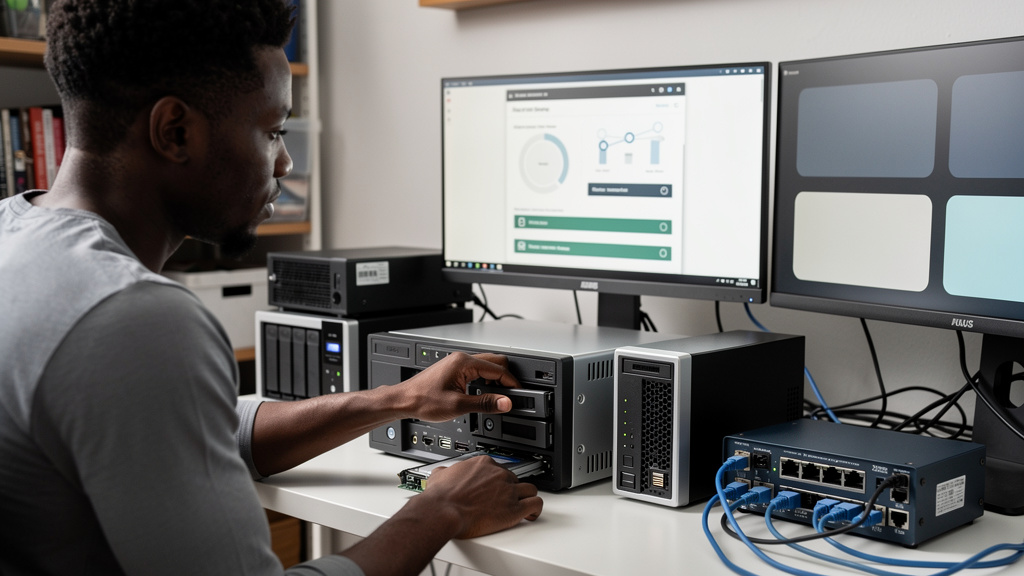
If you have ever wondered what your Asustor is for beyond backup, the answer is usually some version of “small, always-on Linux box that nobody remembers to use.” DayGLANCE is a planner that lives in that gap. It runs as a single Docker container, never requires an account, and never sends your schedule to anyone unless you wire that up yourself. The headline feature, at least for anyone running a home server, is that everything stays on the LAN by default.
DayGLANCE v4.3.0 is the current release at the time of writing, and the install path on Asustor is short enough to do before lunch. The container pulls, starts, and listens on port 7191 by default. From there, it is a browser tab and your timezone. The rest of this guide is what to actually expect, what to skip, and where the trade-offs sit when you put a personal planner on a server you already own.
The data question most planner reviews skip
The pitch for a NAS-based day planner is not “more features.” Cloud planners have more features. They have AI suggestions, calendar integration, shared rooms, push notifications on every device, and a design team behind them. The pitch is control over a slice of your day that most people do not think about as data, but is data.
A planner knows when you wake, when you work, when you stop, when you exercise, and when you take breaks. It knows the rough shape of your week and the rough shape of your month. If that lives on someone else’s server, you have built a profile of your day that someone else can read. That is true even when the company is well-intentioned. Breach disclosures, subpoenas, vendor changes, and feature retirements are all ways the data leaves the planner you trusted.
Running DayGLANCE on an Asustor sidesteps the whole category. The data is on a disk in your house. The container can be paused, removed, or moved without notifying anyone. If you want your phone to see the same schedule, the sync options are explicit and end-to-end encrypted: WebDAV, Nextcloud, or CalDAV. None of that is forced. Out of the box, you can use it for a year and never think about sync.
Picking the right path for your network
The decision that matters more than the install itself is how you intend to reach the planner from outside your house. Cloud planners solve this for you. A NAS-hosted planner punts the question back, and the answer you pick changes the surface area you expose.
- LAN only: install and use, never expose it. Simplest path. Best for a planner that mostly stays on a laptop or a desktop.
- LAN plus VPN: install WireGuard or Tailscale on the NAS and reach DayGLANCE from your phone when you are away. Slight setup cost, no exposed ports.
- LAN plus reverse proxy: install Caddy or Nginx Proxy Manager in front of DayGLANCE and add auth. Most setup, only worth it if you want browser access from anywhere.
Pick one and stick with it. Mixing all three paths and leaving ports open is how home servers end up in breach disclosures.
What DayGLANCE v4.3.0 actually does
When you open the app, the first thing you see is a horizontal time grid for the current day. That is the product. Everything else lives inside that grid or plugs into it from a sidebar.
What lands on the grid:
- Tasks pinned to a specific time block, with duration.
- A capture box for incoming items that have not earned a slot yet.
- A Pomodoro-pattern focus timer you can attach to a task so the work and the timer are the same record.
- Repeating entries for habits, routines, and standing meetings.
- A project tree so daily blocks roll up into longer aims.
The web client installs itself as a progressive web app, so a desktop shortcut or a phone home screen icon launches it without an app store. Optional native builds exist for Android and desktop if you prefer a real binary.
Two features stand out for self-hosters specifically. The encrypted sync option can ride on top of an existing WebDAV, Nextcloud, or CalDAV server, which keeps the credential story familiar. The Obsidian bridge drops a structured task summary into your vault, so your plan and your notes stop drifting between apps. Both are opt-in and the planner is fully usable without either.
Honest constraints before you install
Self-hosting has a real shape, and a lot of guides skip it. The four things below are the actual friction points. None of them are dealbreakers. All of them are real.
- The image pull takes a beat. Cold-cache pulls run a minute or two on a home connection. Warm-cache pulls are quicker. Plan a coffee, not a refresh loop.
- Port 7191 must be free. The app expects that port. If your NAS already uses 7191 for something else, edit the compose block so the public side maps to a different host port (the left side of the
ports:line). - Phone access means standing up a sync target. Reaching DayGLANCE from your phone requires WebDAV, Nextcloud, or CalDAV on the other side. None ship with DayGLANCE.
- Updates are on you unless you add Watchtower. v4.3.0 is current at the time of writing.
The walkthrough below assumes Dockhand is the container manager. Any tool that runs a compose file works the same way.
The install, in order
The whole thing is a single compose file pulled into a container manager. Pick your manager, paste the block, click start. The rest is waiting for the image pull and a quick port check.
services:
  dayglance:
    image: ghcr.io/krelltunez/dayglance:latest
    container_name: DayGLANCE
    healthcheck:
      test: ["CMD-SHELL", "nc -z 127.0.0.1 80 || exit 1"]
      interval: 10s
      timeout: 5s
      retries: 3
      start_period: 90s
    ports:
      - 7191:80
    restart: on-failure:5
Two things to watch during the bring-up:
- The image tag
:latestalways pulls the newest published build. If you prefer to pin to v4.3.0 exactly, edit the line to:4.3.0. - The healthcheck uses
ncagainst the container’s localhost port 80. If you run an image variant without netcat inside, that healthcheck will fail; swap tocurl -f http://localhost/and restart.
Once the container is up, hit http://NAS-IP:7191 from any browser on the LAN. The first-run wizard walks you through timezone, default work hours, and your first time blocks. That is the entire install.
First run
Once the container is healthy, open http://NAS-IP:7191 in any browser on the LAN. The first-run wizard is short: timezone, default work hours, your first time blocks. After that you land in the main timeline view and the rest is up to you.
For phone access, the cleanest path is to point DayGLANCE at a WebDAV, Nextcloud, or CalDAV server you already run. Settings holds the URL, credentials, and encryption toggle. If you do not have one yet, leave sync off. The single-device version is the full version.
What surprised me when I actually used it
Two things showed up in the first week that the source material does not call out.
- The focus timer is the real hook. Most people open a planner to track tasks. The built-in Pomodoro timer attaches to a task so the work and the timer are the same record, and once you use it for a week you start blocking focus sessions into the timeline the same way you block meetings. That turns the planner from a list into a scheduler, which is the actual point.
- The Obsidian bridge is more useful than it sounds. If you keep daily notes in markdown, the app can drop a structured task summary into the same vault. That is a quiet productivity win. It also means your daily plan and your daily notes stop drifting between two apps.
Neither is essential. Both are why a planner on a NAS earns its keep compared to a plain text file.
Trade-offs
- DayGLANCE has no native mobile app store presence. You install it as a progressive web app, which is fine, but you cannot sideload it from a store.
- The sync options are real but technical. WebDAV, Nextcloud, and CalDAV each have their own setup steps. There is no “log in with your email” option.
- The single-user assumption is built in. You can run multiple browsers, but there is no concept of accounts or permissions. This is a home planner, not a team tool.
- The image is community-hosted on GitHub Container Registry (
ghcr.io/krelltunez/dayglance), not a first-party registry. That is fine for most setups but worth knowing if your NAS is locked down to specific registries.
Bottom line
Spend a week using DayGLANCE offline on your NAS before you turn anything else on. If you find yourself reaching for it the same way you reached for your old cloud planner, it earned the right to be extended with sync and integrations. If it sits there untouched, you have learned something useful and lost nothing but ten minutes.
The reason to put a day planner on a NAS is not feature parity with cloud tools. It is the quiet win of keeping the data that knows your day on hardware you control. DayGLANCE is the cleanest version of that idea I have installed this year.